
Hey there! You hit “Send”… and then your brain catches up. Maybe you forgot the file. Maybe the tone feels off. Maybe it went to the wrong person. Or maybe that tiny typo suddenly feels huge.
So you ask: can we unsend an email?
The honest answer? Yes—sometimes. But not in the way most people think.
You usually don’t pull an email back after it’s gone. Instead, you get a short window to stop it before it actually sends. Some systems try to “recall” emails after sending, but that works only in limited cases.
In 2026, email tools will be smarter. But they’re still not perfect. This guide shows you how unsend really works, when it fails, and what to do when it’s too late.
The Short Answer (What’s Really Happening)
You can unsend an email only if you act fast. Most email apps delay sending for a few seconds. During that time, you can click Undo and stop it.
After that?
It’s gone.
There’s no true “take it back” button once it reaches the other person’s inbox.
How “Unsend” Actually Works
There are two main ways email apps handle this.
Undo Send (Delay Trick)
This is the one that works best. The app holds your email for a few seconds before sending. If you click Undo, it never leaves.
This is what most modern email apps use.
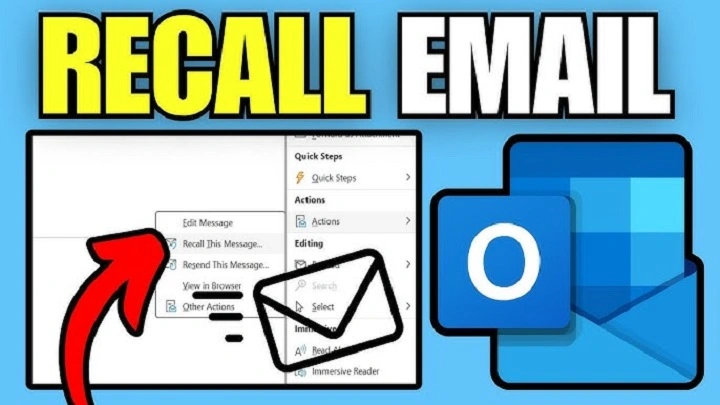
Recall (After Sending)
Some work email systems try to pull the email back.
But it only works if:
- both people use the same system
- the email hasn’t been opened yet
Even then, it’s unreliable. Most of the time, “unsend” really means stop before it sends, not after.
Using Undo Send in Gmail
Gmail makes this very simple. After you hit Send, a small bar appears at the bottom with an Undo button. Click it quickly, and your message returns to Drafts.
You can also change the delay time:
- 5 seconds
- 10 seconds
- 20 seconds
- 30 seconds
Choosing 30 seconds gives you the best safety net. Think of it like a buffer. Your email isn’t gone yet—it’s waiting.
Using Recall in Outlook
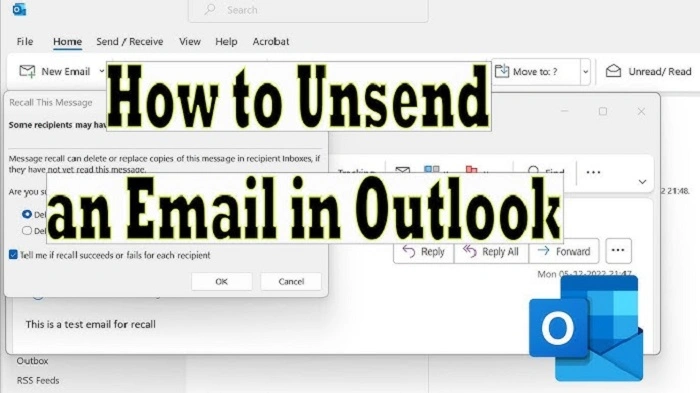
Microsoft Outlook has a Recall feature. It tries to retrieve an email after sending.
But it only works when:
- both users are in the same organization
- both use Outlook
- the message hasn’t been read
If any of these fail, the recall fails. Sometimes the recipient even sees that you tried to recall it.
That can feel awkward. Because of this, many users prefer using a send delay instead.
What Happens When Time Runs Out?
Once the delay ends, your email is sent. You can’t pull it back. At this point, the best move is simple:
fix it with another email.
Most mistakes are easy to correct.
Example: Missing Attachment
Subject
File attachedFile attached
Hi,
Sorry—I forgot the file in my last email.
Here it is.
Thanks,
[Your Name]
Short. Clear. No overthinking.
People understand.
Common Mistakes (and What to Do)
Sent to the Wrong Person
- Try Undo immediately
- If too late, send a quick correction
- Keep it simple and polite
Forgot an Attachment
- Send it right away
- No long explanation needed
Small Typos
- Ignore if meaning is clear
- Fix only if it changes meaning
Wrong Tone
- Send a calm follow-up
- Clarify what you meant
Sensitive Info Sent by Mistake
- Try recall if available
- Inform your team or IT if needed
- Send a correction quickly
Phone vs Computer: Any Difference?
The system is the same. But on phones, the Undo button disappears faster because:
- you switch apps quickly
- notifications distract you
If you email often on your phone, use a longer delay.
Why Recall Doesn’t Work Well
Recall depends on things you don’t control:
- what email system the other person uses
- whether they opened it
- how their system handles recalls
Even when everything matches, it can still fail. That’s why Undo Send is more reliable.
Stop Mistakes Before They Happen
The best strategy is prevention.
Here are simple habits that help:
Wait Before Sending
Pause for a few seconds. Read again.
Check Recipients
Auto-fill can trick you. Double-check names.
Check Attachments
If you wrote “attached,” make sure it’s there.
Watch Tone
If you’re upset, wait before sending.
Use “Send Later”
Schedule emails a few minutes ahead.
This gives you extra time to rethink.
What About Bulk Emails?
For newsletters or large email sends:
You cannot unsend once delivered.
Some tools let you stop a campaign mid-send, but only for emails not yet sent.
Once it’s delivered, the only fix is:
- send a correction email
Why We Panic After Sending
That sudden “oh no” feeling? Very normal. Email is fast and final. That’s why Undo Send exists. A better mindset:
Write like anyone could read it.
It helps you stay:
- clear
- polite
- careful
When a Second Email Is Better
Sometimes a follow-up works better than trying to unsend.
For example:
- adding missing info
- correcting tone
- clarifying details
A good second email builds trust.
Simple Fix Template
Subject
Quick clarificationQuick clarification
Hi,
I want to clear up my last email. [Add your correction here.]
Sorry for the mix-up. Thanks!
Best,
[Your Name]
Keep it short.
Fix the issue.
Move on.
Why This Still Matters in 2026
Even with chat apps everywhere, email is still essential.
People use it for:
- work communication
- approvals
- contracts
- records
Mistakes matter. But the good news?
Simple fixes usually work.
Quick Wrap-Up
You can unsend an email—but only for a few seconds.
- Gmail uses Undo Send delay (very reliable)
- Outlook recall exists (less reliable)
If time runs out:
- don’t panic
- send a clear follow-up
Most people understand.
FAQs
Can we unsend an email after sending?
Only for a few seconds using Undo Send. Recall works in limited cases.
How long is Undo Send in Gmail?
Between 5 and 30 seconds, depending on your settings.
Does Outlook recall always work?
No. It depends on the system, timing, and conditions.
What if the email is already read?
You cannot unsend it. Send a correction instead.
What’s the safest method?
Use a delay, double-check before sending, and stay calm if you need to fix something later.
