
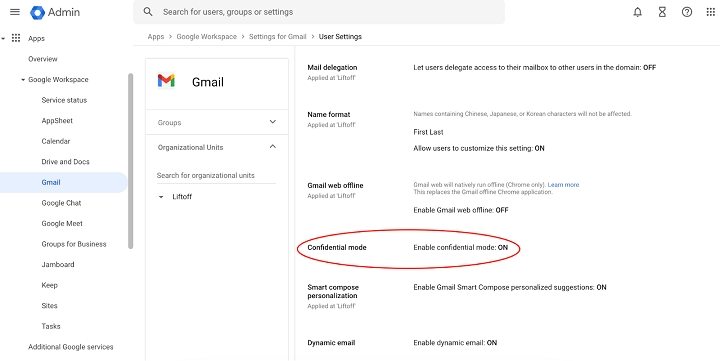
Your inbox is about more than convenience–it’s about trust. Some emails aren’t supposed to live forever: financial statements, sensitive work files or private personal details. Gmail’s Confidential Mode was created for exactly that.
If you’ve been wondering how to enable Gmail confidential mode then you’ll be pleased to hear that not only is it simple but that it’s built into Gmail. With just a few taps or clicks you can do the following: Set expiration dates, block forwarding and even require pass codes to open sensitive messages. This guide will walk you through exactly how to use it–on desktop and mobile–plus troubleshooting, security tips, and daily habits to make sure your inbox stays safe.
Why the Gmail Confidential Mode is Important
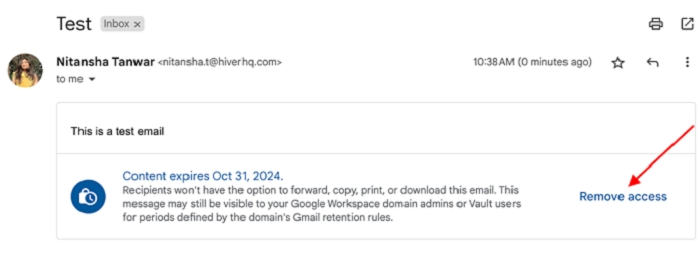
Confidential Mode isn’t about paranoia – It’s about peace of mind. Here’s why it matters:
- Extra security: Ensure sensitive info is not copied, forwarded or downloaded.
- Time limits: Set the expiration date and emails delete themselves.
- Access control: Require passcodes to access only by the right people.
- Business-friendly Great for contracts, invoices or private negotiations
- Personal safety: Share personal info and not leave a permanent trace.
In short, Confidential Mode makes Gmail less storage and more smart, secure, communication.
Enable Confidential Mode In Gmail App
If you’re primarily emailing from your phone, Confidential Mode is quite literally at your fingertips.
Steps to using Confidential Mode in Gmail app
- Go to the Gmail app on your iPhone or Android.
- That will summon the “compose a new email” menu.
- In the top right, click on the three dot menu (…).
- Select Confidential mode.
- To set the expiration date (current day, next day, next week, next month, 3 months, or 5 years).
- set whether or not a passcode is required:
- no SMS passcode.Gmail user going directly.
- SMS passcode: Access is obtained by recipients receiving a text code.
- Tap Save.
- Finish up your email and tap Send.
Now your email is sealed off using rules you’ve set.
Enable Confidential mode on Desktop
On the laptop or computer, the procedure is simply as easy.
Steps to use Confidential mode of Gmail desktop
- Go to gmail.com and log in.
- To send a new email, click Compose.
- On the bottom of the compose window click on the lock and clock icon (Confidential Mode).
- Choose the expiration date.
- Decide on SMS passcode or not.
- Click Save, then Send.
Recipients will see the email has been safeguarded and may require a code if you’ve asked them to do so.
What Recipients See
When a person receives a confidential email:
- They’ll get a banner that says the message is in Confidential Mode.
- They can’t forward, copy, download, or print the email.
- If you configure an SMS passcode, they’ll receive a text message containing a one-time message.
- When the expiration date is reached, the message automatically is gone.
Have Gmail Confidential Mode Working for You
Confidential Mode, flexible – use it your way:
- For business: If you could send contracts, invoices or proposals with expiration dates.
- For personal use: Share private health, banking or ID info in a safe way.
- For teamwork: Stop sensitive data from being moved outside of the team.
- For temporary access: Providing access for a week to information, and then fade away.
Security You Don’t want to Miss
Confidential Mode helps but no tool is perfect. Combine it with these habits:
- Always double check recipients: Once you hit send you can’t take it all back most of the time.
- If you have 2 step verification enabled, use it for 1 step verification. or use 2 step verification for 2 step verification for your gmail account.
- Be careful with SMS passcode: make sure you use the right phone number for the recipient.
- Don’t forget screenshots: Confidential Mode disallows downloads but not screenshots. Share With People You Array has to be people you trust.
- Review sent emails: Check your Sent folder and modify access to or revoke emails early if necessary.
Troubleshooting Away When Things Don’t Work
Recipient says he can’t open the email
- Make sure you sent an SMS passcode to the correct number
- If they’re not using Gmail, they’ll have to click a secure link to view.
Email expired too early
- Confidential Mode emails cannot be prolonged after sending You’ll need to send back with a new expiration
Accidental off Confidential Mode
- About diet for draft Edit and click the lock icon again to re-enabling before sending.
Passcode not arriving
- Ask the recipient to monitor network signals.
- Resend Out The Correct Email With the Right Phone Number
Daily Life Habits
Using Confidential Mode well, it’s not just about the lock – it’s about habits that make you safer:
- Take time expiration to heart: Opt for a short period for highly sensitive info.
- Revoke early if needed: Open Sent – find the confid weaving, what access to click Remove access.
- Label secure messages: Create a label in Gmail such as “Confidential” to make tracking it easy.
- Avoid casual use Stick to Confidential Mode for important messages so you don’t desensitize recipients.
- Mix with Drive security: For large files, use google drive with restricted access instead of email.
FAQs
What is Gmail confidential mode?
It’s a feature that allows you to send emails containing expiration dates and limits such as no forwarding or downloading.
Does Confidential Mode encrypt e-mails?
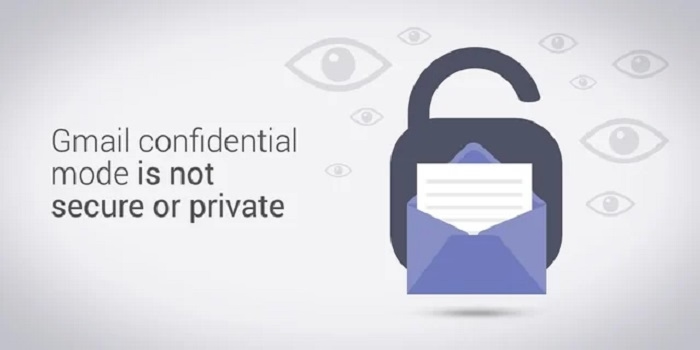
Not fully. It does restrict some action, but does not substitute end-to-end encryption.
Can recipients still take Screen Shots?
Yes. Confidential Mode prevents downloads, but….players can’t stop them from taking screenshots
Can I unsend an email I’ve sent?
Yes. Navigate to your Sent folder, and view the confidential email, and click on Remove access.
Do I need a Gmail app to open confidential emails?
No. People who don’t have Gmail can open it through a secure link. If an SMS passcode is required , they’d need the code.
Gmail Confidential Mode has little to do with one’s paranoia, though, and more to do with the security of what matters. With a couple of clicks you can set expiration dates, block forwarding, even require passcodes for sensitive messages. Pair it with these smart habits like verifying recipients and using 2-Step Verification and you’ll have your inbox private and professional.
It’s your email-Confidential Mode that gets you back in the driver’s seat.
