
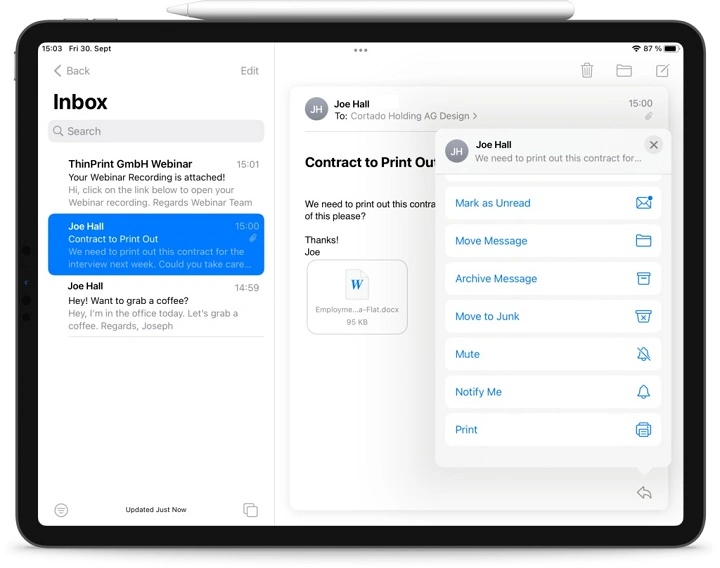
Sometimes you need a real paper copy of an email. Something you can hand to someone. Something you can attach to paperwork. Something you can file, sign, or bring into a meeting Your iPhone can print emails easily — but only if you know where the print options are hidden.
Whether you use the Apple Mail app, Gmail app, Outlook app, or another email app, printing from an iPhone takes just a few taps. This 2025 guide walks you through every method. Clean,
Simple and step-by-step guide.
Why Printing Emails from iPhone Matters
Printing helps when you need:
- receipts for taxes
- booking confirmations
- school forms
- medical instructions
- invoices
- contracts
- travel tickets
- meeting documents
- shipping labels
- official records
And your iPhone becomes your portable printer controller for all of it.
Print an Email Using the Apple Mail App
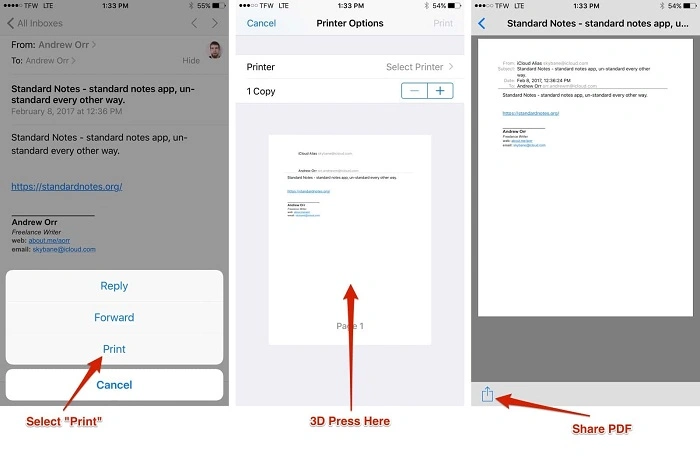
This works for any email account added to your iPhone.
Steps:
- open the Mail app
- open the email you want to print
- tap the Reply/Forward icon (bottom right or top right)
- scroll down
- tap Print
- choose your printer
- choose pages or copies
- tap Print again
That’s it. The email prints instantly.
Tip:
- make sure your printer supports AirPrint.
Print an Email from Gmail App on iPhone
Steps:
- open the Gmail app
- tap the email you want
- tap the three dots (•••) in the top-right corner
- tap Print
- choose AirPrint printer
- adjust settings
- tap Print
Gmail hides the print button in the menu, but it’s always there.
Print an Email from Outlook App on iPhone
Steps:
- open the Outlook app
- tap the email
- tap the three dots (•••) in the top-right corner
- tap Print
- select your AirPrint printer
- set options
- tap Print
Outlook works exactly like Gmail for printing.
Print an Email Attachment from iPhone
Most emails include attachments — receipts, PDFs, images, forms.
Steps:
- open the email
- tap the attachment to open it
- tap the Share icon (square with arrow)
- tap Print
- pick your printer
- print
Attachments require one extra tap, but the process is the same.
Method 5: Print Email as a PDF (Save First, Then Print)
If you want a cleaner copy:
Steps:
- open the email
- tap the Reply icon
- tap Print
- use two fingers and pinch outward on the preview
- this opens a full PDF view
- tap Share
- save to Files or print directly
Great for keeping PDF backups.
Print an Email When Printer Doesn’t Show Up
If your printer isn’t showing:
Check:
- printer must support AirPrint
- printer must be on the same Wi-Fi network
- printer must be turned on
- iPhone Wi-Fi must be enabled
- VPN must be turned off
- printer firmware must be updated
Fix:
- turn printer off and on
- reconnect iPhone to Wi-Fi
- restart the email app
- restart your iPhone
After a refresh, AirPrint usually appears.
Print Email Using WiFi-Direct (If No WiFi Network Available)
Some printers support WiFi-Direct printing.
Steps:
- open printer’s WiFi-Direct mode
- go to iPhone Settings
- open Wi-Fi
- connect to your printer’s WiFi signal
- open Mail app
- open email
- tap Reply → Print
- print normally
Useful when traveling or printing at offices without guest Wi-Fi.
Print Email Through Third-Party Printer Apps
If your printer doesn’t support AirPrint, use:
- HP Smart
- Canon PRINT
- Epson iPrint
- Brother iPrint & Scan
Steps:
- download your printer’s app
- open the email
- tap Share
- choose Open in… or Copy to
- select your printer app
- print
This is the backup method when AirPrint is not available.
Print Only Part of an Email
If the full email is long:
Steps:
- screenshot the part you want
- open Photos
- tap Share → Print
Or create a PDF and delete pages before printing.
Print Email Threads or Conversations
Some apps let you print conversations together.
Best method:
- open Gmail or Mail
- scroll through the full thread
- tap Reply → Print
- preview shows entire conversation
- print
Tip:
- Apple Mail prints threads more cleanly than Gmail.
Print Emails from iCloud Mail
Steps:
- open Mail
- tap your iCloud email
- tap the message
- tap Reply → Print
- choose printer
- print
No special settings needed.
Print Emails Without an AirPrint Printer Using a Computer
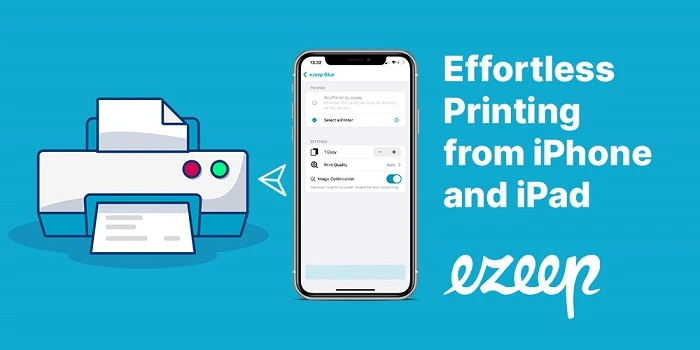
If your printer does not support AirPrint:
Steps:
- forward the email to yourself
- access it on a computer
- print from Gmail or Outlook
Or:
- save the email as a PDF on iPhone
- transfer the PDF to your computer
- print normally
This works even with very old printers.
Also Read: How to Email a Video That Is Too Large: The 2025 Step-by-Step Guide to Sending Big Files Fast
Troubleshooting: When You Can’t Print from iPhone
If printing fails:
Check:
- iPhone not on same network as printer
- AirPrint disabled
- printer offline
- outdated printer firmware
- VPN interfering with local printing
- weak Wi-Fi signal
- email app glitch
Fix:
- restart phone
- restart printer
- reconnect to Wi-Fi
- update printer app
- toggle Wi-Fi off and on
- try printing a PDF instead
Sometimes printing works better after converting the email to a PDF file.
Organization Tips After Printing an Email
- delete the email if you no longer need it
- save important messages as PDFs in Files
- create a folder for receipts and confirmations
- print attachments only when necessary
- star or flag emails you must print later
- use filters to find printable emails quickly
Good inbox organization = fewer printing mistakes.
Quick Summary
How to print an email from iPhone:
- Apple Mail: Reply → Print
- Gmail: three dots → Print
- Outlook: three dots → Print
- attachments: open → Share → Print
- save as PDF first if needed
- make sure AirPrint is enabled
- use printer apps if AirPrint is unavailable
- use WiFi-Direct if no WiFi network
- or print via computer
Two taps — and you have a paper copy.
FAQs
- Do I need AirPrint to print from iPhone?
No — third-party apps or WiFi-Direct also work. - Why can’t my iPhone find my printer?
You may not be on the same Wi-Fi network or your printer may not support AirPrint. - Can I print only an attachment?
Yes — open the attachment → tap Share → Print. - Can I print a whole email thread?
Yes — print from the Mail app or Gmail conversation view. - Can I save an email as a PDF before printing?
Yes — pinch the Print preview outward to create a PDF.
