
Can You Sync Gmail Notes with an iPhone?
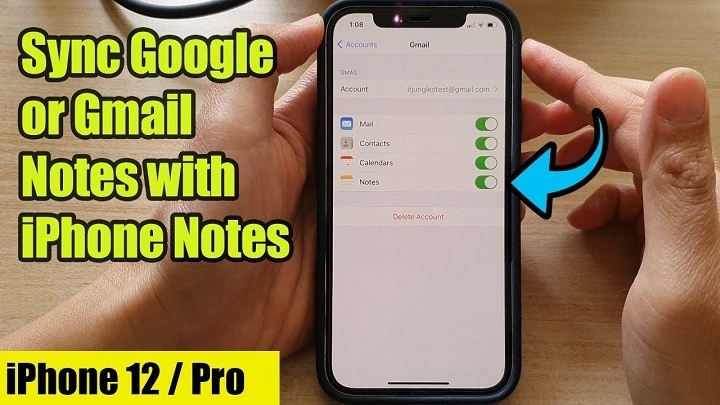
Yes, you can sync Gmail Notes with your iPhone, but it works differently compared to Apple’s built-in Notes app. When enabled, Gmail stores notes in a dedicated folder under your Gmail account. However, changes made in Apple Notes might not sync perfectly with Gmail, and the feature has limitations.
How to Sync Gmail Notes with iPhone
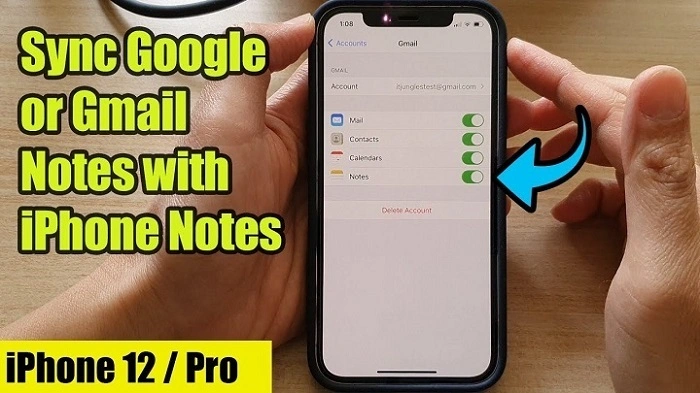
To access Gmail Notes on your iPhone, you need to enable Notes syncing in your email settings.
Steps to Enable Gmail Notes Sync on iPhone
- Open the Settings app on your iPhone.
- Scroll down and tap Mail (or Passwords & Accounts on older iOS versions).
- Select Accounts and choose Gmail.
- Toggle Notes ON to sync with your Gmail account.
Once enabled, any note you create under your Gmail Notes folder will sync with your Gmail account.
Where Are Gmail Notes Stored on iPhone?
Gmail Notes do not appear in the Notes app like iCloud notes. Instead, they are saved as emails under a “Notes” label in Gmail. To find them:
- Open the Mail app on your iPhone.
- Go to the Gmail inbox and look for the “Notes” folder.
- You can also access them by logging into Gmail on a web browser and checking the Notes label.
Why Are Gmail Notes Not Syncing on iPhone?
If your Gmail Notes are not appearing or syncing properly, try these troubleshooting steps:
1. Check Notes Sync Settings
Ensure Notes sync is enabled under Settings > Mail > Accounts > Gmail.
2. Refresh the Mail App
Since Gmail Notes sync via the Mail app, open the Mail app and refresh by pulling down on the screen.
3. Use the Correct Account
If you have multiple Gmail accounts on your iPhone, verify that you are checking the correct Gmail account’s Notes folder.
4. Check Internet Connection
A weak or disconnected internet connection may prevent Gmail Notes from syncing.
5. Re-add Gmail Account
If Notes still don’t sync, try removing and re-adding your Gmail account:
- Go to Settings > Mail > Accounts > Gmail > Delete Account.
- Re-add your Gmail account and enable Notes sync.
Limitations of Using Gmail Notes on iPhone
While you can sync notes with Gmail, there are a few limitations:
- No Rich Formatting: Gmail Notes support only plain text, unlike iCloud Notes which allow images, checklists, and rich text.
- No Folder Organization: Gmail Notes are stored as emails in a “Notes” label, meaning they lack the folder system of the Notes app.
- Limited Editing Support: If you edit a Gmail Note in the Mail app, it may overwrite previous versions without a recovery option.
Best Alternatives to Gmail Notes on iPhone

If Gmail Notes doesn’t work well for your needs, consider using:
1. Apple Notes with iCloud Sync
- Provides better organization, formatting, and offline access.
- Syncs seamlessly across all Apple devices.
2. Google Keep
- A dedicated Google note-taking app with better features.
- Available on iPhone via the Google Keep app.
3. Evernote or Microsoft OneNote
- If you need more advanced note-taking features, apps like Evernote and OneNote offer better organization and collaboration.
FAQs
1. Why can’t I find my Gmail Notes on my iPhone?
Check your Mail app’s Gmail account and look for the “Notes” folder under labels. Gmail Notes do not appear in the Notes app.
2. Can I edit Gmail Notes on my iPhone?
Yes, but editing a Gmail Note in the Mail app updates it as an email in your Gmail Notes label, replacing the previous version.
3. Do Gmail Notes support images and rich text?
No, Gmail Notes only support plain text without formatting, images, or checklists.
4. What happens if I delete a Gmail Note?
Deleting a Gmail Note removes it from your Gmail account permanently and cannot be recovered.
5. Can I use iCloud and Gmail Notes together?
Yes, but they work separately. iCloud Notes sync within the Notes app, while Gmail Notes sync via the Mail app.
