
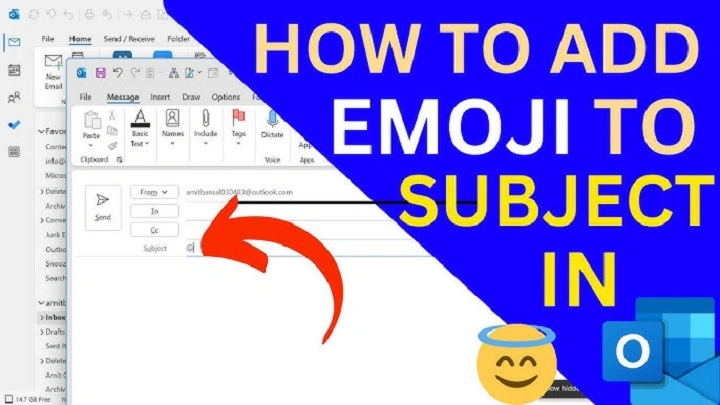
Ever find yourself writing an email and thinking, “This needs… something more?” Maybe a smiley 😊 to soften the tone, or a quick thumbs up 👍 to keep it chill. Sometimes, plain text just doesn’t cut it—and that’s where emojis swoop in to save the vibe. Whether you’re lightening the mood, adding a pop of personality, or making sure your “thanks” really feels thankful, learning how to add emoji to Outlook email is a modern-day must. And don’t worry, it’s easier than you think—no tech wizardry required.
Why Even Bother with Emojis in Emails?
Let’s be honest—emails can feel a little stiff. Emojis help:
- Show tone (because ALL CAPS might not mean you’re yelling)
- Make emails friendlier and more human
- Add a spark to newsletters, invites, or subject lines
- Bridge the gap in remote work where tone is tricky
Visual Suggestion: Side-by-side comparison of an email with and without emojis. The emoji version just feels friendlier.
Adding Emojis in Outlook on Windows (AKA the Workhorse Method)
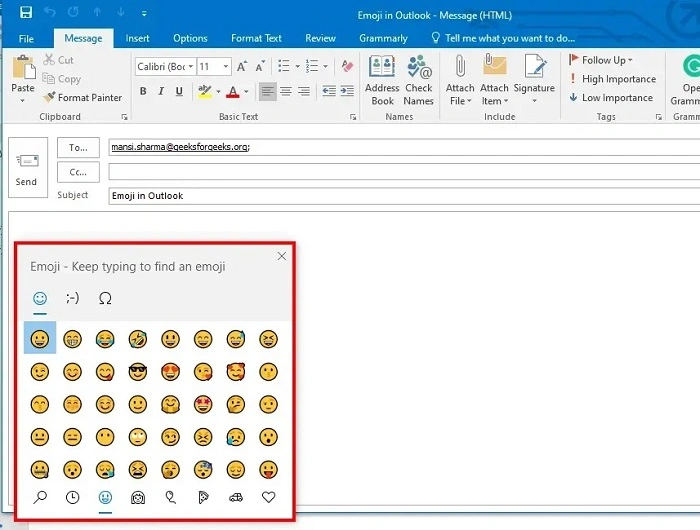
Shortcut Style – Fast and Easy:
- Click in your email where you want the emoji.
- Hit Windows key + period (.) or Windows key + semicolon (;).
- Emoji panel pops up—like magic!
- Scroll or search, then click to drop that emoji in.
Bonus Tip: This works anywhere you type text—so emoji it up in Teams, Word, even Notepad if you’re feeling extra expressive.
Old-School Outlook (2016/2019) Way:
- Click where you want the emoji.
- Head to Insert > Symbol > More Symbols.
- Choose the Segoe UI Emoji font.
- Scroll until you find the one that speaks to your soul.
Pro Tip: Windows 10/11 give you access to tons of emojis, including diverse skin tones, flags, and even food (because obviously 🍕 matters).
Mac Users, Don’t Worry—You’re Covered Too
- In your email body, click where your emoji should go.
- Press Control + Command + Space.
- The emoji viewer appears—like a secret menu of expression.
- Click to add. Boom.
Visual Suggestion: A MacBook keyboard graphic showing the shortcut combo.
Outlook Web Users, You’re Not Left Out!
- Compose or reply to an email.
- Look for the smiley face icon in your toolbar.
- Click it, scroll through, and tap the emoji that fits.
No smiley in sight?
- Click the three-dot (…) menu, then find the emoji picker under “More actions.”
Fun Tip: Yes, you can put emojis in subject lines—just copy and paste them in. Great way to boost open rates. Just don’t overdo it.
Wait—What If the Emoji Looks Weird or Doesn’t Show Up?
If you send an emoji and it shows up as a strange box 🟥 or question mark:
- Make sure your device is updated (Windows or macOS)
- Stick to the basics like 😊, 👍, 🎉 — they’re universal
- Some older systems just won’t show the latest emojis
Visual Idea: An example screenshot with emoji display gone wrong vs. one that looks perfect
Emoji Etiquette: When to Use and When to Chill

- ✅ Use emojis to clarify tone, especially in tricky convos
- ✅ Sprinkle a few in newsletters or team updates
- ❌ Don’t turn your message into a parade 🎪🎆🎈🎉🎊
- ✅ Know your audience—“LOL 😂” to a coworker might fly, but not always to your manager
Example:
- “Got it, thanks!” vs. “Got it, thanks! 👍” — the second one feels warmer, right?
Tip: If you wouldn’t say it with a smile in real life, maybe skip the emoji.
Conclusion: Go Forth and Emoji Like a Pro Now that you know how to add emoji to Outlook email, go ahead—give your messages some personality. Emojis can make your emails feel less robotic and more real, especially in the age of remote everything. Whether you’re saying “well done 👏,” “sorry 😬,” or just “hey 👋,” you’ve got the tools to do it with flair.
Just maybe save the 💩 emoji for your group chats.
Have a go-to emoji you swear by in work emails? Share it in the comments—we’re all ears (and eyes 👀)!
Related Reads:
- How to Recall an Email in Outlook (Yes, It’s Possible)
- Best Email Signature Tips for 2025
- Keyboard Shortcuts in Outlook That’ll Save You Hours
