
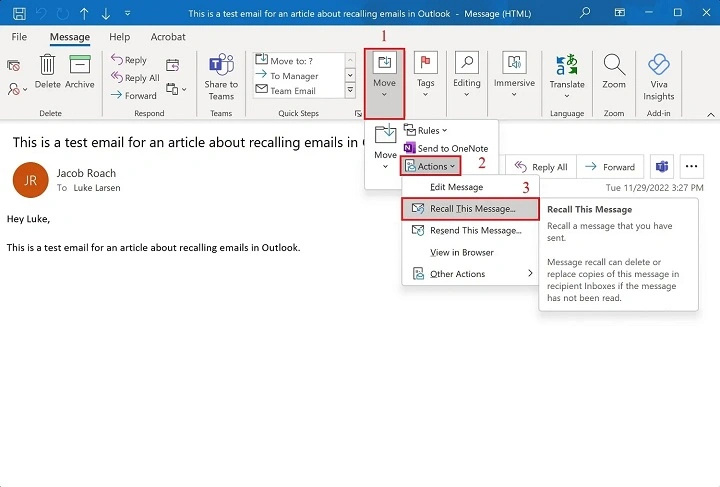
You know that mini heart attack feeling you get right after hitting “Send”? That sinking realization that—uh oh—you just emailed the wrong person, or worse, your boss… without the attachment. We’ve all been there. The good news? If you’re using Microsoft Outlook, there’s a possible escape hatch: the magical “recall” feature. But heads up—it’s a little picky. In this guide, we’ll break down how to recall an email in Outlook in the simplest way possible, share when it works (and when you’re out of luck), and throw in a few life-saving tips to keep future email disasters at bay.
When You’ll Be Grateful for Email Recall
Let’s paint the scene:
- You attach nothing… but promised “see attached.”
- You accidentally reply-all with a snarky comment meant for one person.
- You typo a client’s name. (Yikes!)
That’s when email recall in Outlook can swoop in and save your day—or at least try.
Visual Suggestion: A cartoon of someone sweating while frantically clicking “Recall” on a laptop screen.
How to Recall an Email in Outlook (Desktop Only, Sorry Mobile Folks!)
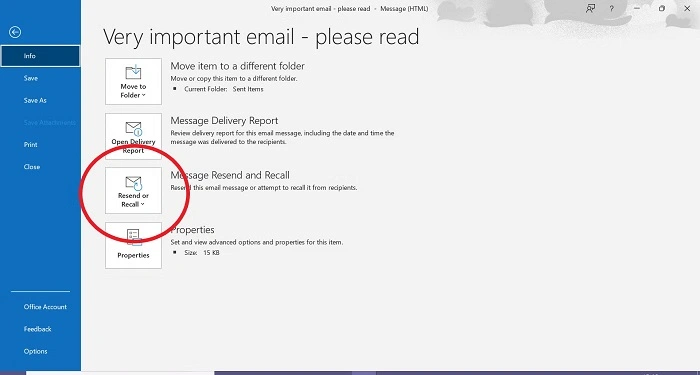
Alright, let’s do this:
- Go to your Sent Items folder in Outlook.
- Double-click the email that’s giving you anxiety.
- Click File > Info > Resend or Recall > Recall This Message.
- Choose:
- Delete unread copies of this message, or
- Delete unread copies and replace with a new message (fancy!).
- (Optional) Check the box to get a report on how it went.
- Hit OK and cross your fingers.
But wait, there’s a catch (actually, several):
- Both you and the recipient need to be on Microsoft Exchange or Microsoft 365 (same org, folks).
- The email has to be unread.
- They must be using the Outlook desktop app, just like you.
Visual Suggestion: A flowchart showing: Sent Email → Meet all conditions? → Success! / Fail!
What Actually Happens When You Recall a Message?
- If it works: Poof!—the email vanishes from the recipient’s inbox.
- If it fails: You’ll get a little “nice try” message in your inbox.
Outlook sends a status update either way, so you won’t be left wondering.
Relatable Moment: You recall the email, then spend 5 minutes refreshing your inbox, whispering “please please please…”
Why Outlook Recall Might Let You Down
Let’s be real: it doesn’t always work. Here’s why:
- The recipient already opened it? Too late.
- They’re outside your company? Nope.
- They’re using Gmail or mobile? Game over.
In short: it’s not magic, it’s just Outlook trying its best.
Plan B: What to Do If Recall Fails
If the email’s already out there and the recall didn’t work, don’t panic. You’ve still got options:
- Send a Follow-Up
- Apologize. Keep it brief. Maybe even add a smiley if the tone fits.
- Example: “Oops! Just realized I missed the attachment—here it is.”
- Delay All Your Emails (Seriously, It’s Genius)
- Go to File > Options > Mail > Rules > Delay Delivery.
- Set emails to wait 2-3 minutes before sending.
- Gives you time to catch those “oh no” moments.
- Add Email Expiration or Permissions (For Power Users)
- Useful if you’re sending sensitive info.
Story Time: I once sent a sales quote with a huge pricing error. Thankfully, I had delayed sending by 2 minutes. Spotted the goof, stopped the send, fixed it. Saved me and my client some serious awkwardness.
Visual Suggestion: A screenshot or diagram of how to create a delay rule in Outlook settings.
Can You Recall an Email in Outlook Web (OWA)?
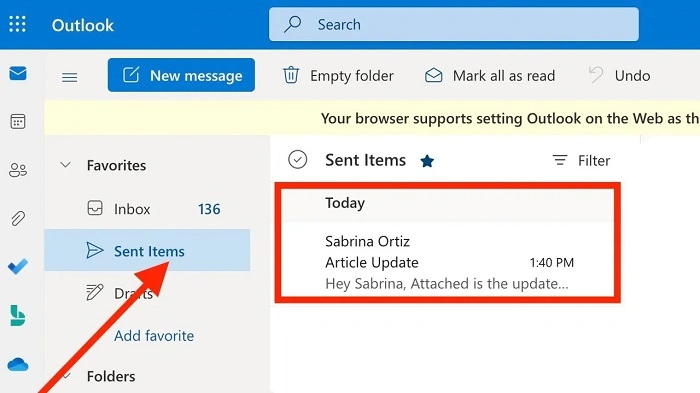
Bad news: the Outlook web version doesn’t have the recall feature. But all is not lost!
Use “Undo Send” Instead:
- Click the gear icon (Settings).
- Go to View all Outlook settings > Mail > Compose and reply.
- Scroll to Undo send and set a delay (up to 10 seconds).
- Hit Save.
Pro Tip: It’s not true recall—but 10 seconds is all you need to spot a major oops.
Wrapping Up: Recall Isn’t Perfect, but It’s Something
Learning how to recall an email in Outlook is like knowing where the emergency brake is in your car—it won’t always save the day, but it can definitely help in a pinch. Just remember: even if it doesn’t work, you’ve got backup moves.
So, try out those delay settings, double-check your emails before sending, and maybe—just maybe—recall will come to your rescue when you need it most.
Have a recall horror story or a genius save moment? Share it in the comments—we’d love to cringe and laugh with you!
Related Reads:
- How to Delay Sending Emails in Outlook
- Best Practices for Writing Professional Emails (With Fewer Regrets)
- Outlook Rules That Can Organize Your Life
