
We’ve all been there. You hit Send and then – oh no! Maybe you saw a typo. Maybe you sent it to the wrong person. Or maybe the tone felt off. Right away, you wonder: can I edit that email I just sent?
Email feels quick, but also final. Once you send it, it’s gone. You can’t control it anymore. But wait – new email tools can help sometimes. You usually can’t edit an email after sending it. That’s true. But there are tricks, fixes, and ways to prevent mistakes that really help.
This 2026 guide shows you when you can edit, recall, or fix a sent email. And what to do when it’s too late.
The Short Answer: Can You Edit a Sent Email?
Most times, no. Once your email lands in someone’s inbox, you can’t change it. Email doesn’t work like Google Docs or cloud files.
But hold on – there are some ways to get close. You can use undo tools, try recalls, delay sending, or send fixes. Knowing these helps you stay calm instead of freaking out.
Why Sent Emails Usually Can’t Be Edited
Email works like mail. You send it one way. Once it goes through servers and lands in someone’s inbox, it’s a copy. That copy doesn’t stay linked to your draft.
Because of how email works, editing would mean changing a file in someone else’s inbox. Most email systems won’t let you do that. It’s about privacy and safety.
So “editing” a sent email means using tools before it sends or fixing things after.
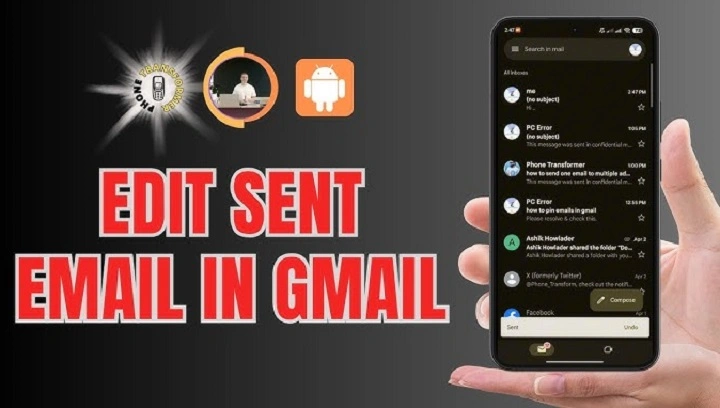
Undo Send (The Closest Thing to Editing)
Undo Send is your best friend, but it only works for seconds. It doesn’t edit the email. It just delays sending and lets you cancel.
Lots of people don’t know this exists. Or they forget to turn it on.
How Undo Send Works
Undo Send holds your email for a bit before sending. During that wait, you can cancel and change things.
Undo Send in Gmail (2026)
Gmail lets you wait up to 30 seconds.
First, make sure it’s on. Set the longest delay you’re okay with.
Steps to use Undo Send in Gmail
Right after you send:
- look at the bottom-left of Gmail
- click Undo when it shows up
- your email opens as a draft again
- fix what you need
- send it again
Miss that window? Too late. It’s sent and can’t be edited.
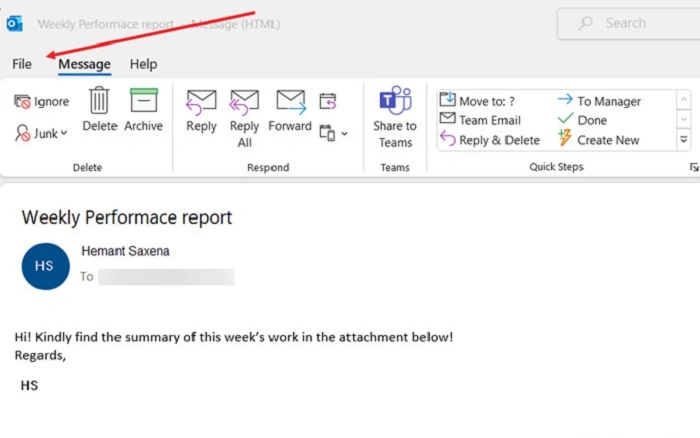
Undo Send in Outlook
Outlook works the same way, mostly in web and newer versions.
Steps to undo in Outlook
Just after sending:
- watch for the Undo option
- click Undo
- edit your draft
- send it again
This only works for seconds. Turn it on in settings first.
Recall a Sent Email (Limited and Unreliable)
Email recall sounds great, right? But it has big limits. It doesn’t edit your email. It tries to delete it from their inbox.
When Email Recall Works
Recall needs very specific things. Both people usually need the same email system at the same company.
What recall needs to work
For recall to even try:
- both use Microsoft Outlook
- both on the same Exchange server
- they haven’t opened the email
- the email is still unread
Miss any of these? Recall fails.
Why Recall Often Fails
Even when you try recall, they often get a note saying you tried. This can make things worse!
So recall isn’t great for outside emails or work stuff.
Also Read: How to Edit an Email
Editing an Email That Was Scheduled but Not Sent Yet
Scheduled emails are life savers. If your email is scheduled but hasn’t sent, you can still edit it all you want.
It’s not editing a sent email. But it feels like it.
Editing a Scheduled Email in Gmail
Scheduled emails wait in a special folder.
Steps to edit in Gmail
- open Gmail
- click Scheduled
- open the email
- click Cancel send
- it moves to Drafts
- fix what you need
- schedule again or send
Editing a Scheduled Email in Outlook
Outlook does this too.
Steps to edit in Outlook
- open Outbox or Scheduled folder
- open the email
- change what you need
- save and send again
If it hasn’t sent yet, editing is easy.
Can You Edit an Email After the Recipient Opens It?
Once they open it, editing is impossible. They have their own copy now.
Even if you delete it from your Sent folder, their copy stays.
Now you can only fix things with a follow-up email.
Sending a Correction or Follow-Up Email
Can’t edit? Be clear instead. A short, honest follow-up often fixes things nicely.
People like clarity more than silence.
When to Send a Follow-Up
Follow-ups work great when:
- you had a typo or wrong date
- you forgot info
- your tone seemed off
- you sent too fast
How to Write a Professional Correction Email
Keep it short and calm. Focus on facts, not drama.
Take a breath. Think about the fix, not the mistake.
Simple correction structure
- say there was a mistake (briefly)
- state the right info clearly
- don’t say sorry too much
- keep it professional
This builds trust. No need for shame.
Editing Emails in Shared or Collaborative Tools
Some people mix up email with Google Docs or shared tools. Unlike those, emails don’t update live.
But if your email has a link to a shared doc, you can update the doc.
What You Can Update After Sending
You can’t edit the email, but you can:
- update linked Google Docs
- fix shared sheets
- change who can see files
- add notes in linked docs
This fixes info without a new email.
Why Email Editing Is Restricted
Email systems care about privacy and safety. If senders could edit after sending, that would cause big trust problems.
People need to know their emails won’t change without them knowing.
That’s why email tools focus on preventing mistakes, not editing after.
How to Prevent Needing to Edit a Sent Email
The best fix? Make fewer mistakes. Small habits help a lot.
Before you click send, take a few seconds. Check your message.
Smart habits to avoid mistakes
These help prevent regret:
- reread the subject line
- check who you’re sending to
- look for dates and attachments
- pause before sending touchy emails
- use scheduled send when you can
These steps save time and stress.
Using Delay Send as a Safety Net
Delay Send gives you a buffer. Great for important or emotional emails.
By delaying, you can catch mistakes and cancel if needed.
Why Delay Send Helps
Delay Send lets you:
- cancel emails after “sending”
- edit drafts before they go
- avoid rushed messages
- send during work hours
It’s one of the best email tools in 2026.
Can Businesses or Admins Edit Sent Emails?
Sometimes, system admins can remove emails for legal or safety reasons. But they’re not editing content.
Regular users? Can’t edit sent emails.
Common Myths About Editing Sent Emails
Lots of myths exist online. Let’s clear them up.
Things people get wrong
- deleting doesn’t remove it from them
- recall doesn’t work on all email
- sent emails aren’t editable
- read receipts don’t let you edit
None of these work in real life.
What to Do If You Sent Something Serious by Mistake
Sent something sensitive? Stay calm. Act quick and professional to reduce damage.
Steps to take now
- don’t panic-send more emails
- check who got the message
- contact them directly if needed
- tell your company if you must
Clear words matter more than speed.
Quick Summary
You usually can’t edit sent emails once they’re delivered. But you can undo sending quickly, edit scheduled emails, or fix mistakes with follow-ups.
Your main options:
- use Undo Send
- edit scheduled emails
- recall emails (rarely works)
- send correction emails
- use delay send to prevent mistakes
Knowing these tools gives you control and confidence.
Frequently Asked Questions (FAQs)
Can you edit a sent email after it’s delivered?
No. Once it’s there, you can’t change it.
Does Undo Send actually edit the email?
No. It stops delivery before sending.
Can Outlook recall emails successfully?
Only sometimes, inside the same company.
What’s the best way to fix a sent email mistake?
Send a short, clear correction email.
Is there any way to truly edit emails after sending?
No. Email systems don’t let you edit after sending.
