
Ever tried attaching a folder to an email and suddenly nothing works?
Yeah. Super annoying honestly.
You drag the folder in and your email app goes:
“Nope.”
Then you’re sitting there wondering:
“Wait… why can’t I just send the folder?”
Happens to people constantly.
Especially when trying to send:
- Photos
- Work documents
- School projects
- Videos
- Design files
- Entire project folders
The confusing part?
You can send folders by email.
Just not directly most of the time.
Usually you need to:
- Compress the folder
- Turn it into a ZIP file
- Or upload it to cloud storage
Sounds technical at first honestly.
But once you learn it? Super easy.
Let’s walk through exactly how attaching folders to emails works and the best ways to do it.
Can You Attach a Folder to an Email?
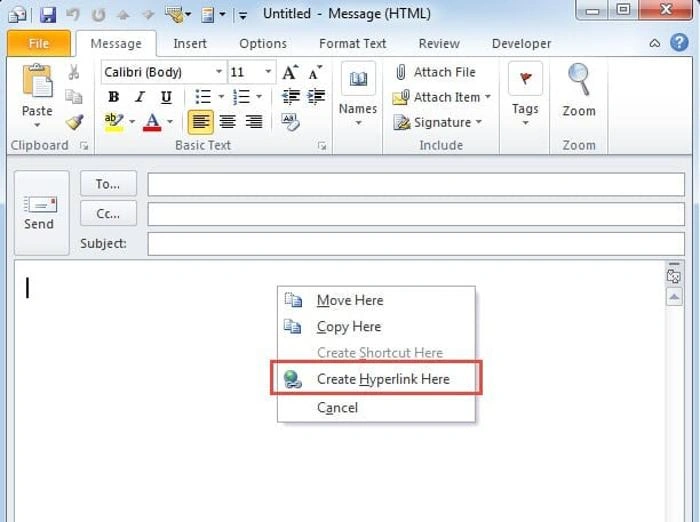
Technically yes.
But most email services won’t allow raw folders directly.
Why?
Because folders contain:
- Multiple files
- Different formats
- Complex structures
Email apps prefer single file attachments instead.
That’s why folders usually need to be compressed first.
What Does Compressing a Folder Mean?
Compressing turns a folder into one file.
Usually called:
- ZIP file
- Compressed folder
- Archive file
This makes it:
- Smaller
- Easier to upload
- Easier to email
Very common honestly.
What Is a ZIP File?
A ZIP file is basically:
a packaged version of your folder.
Think of it like putting many papers into one envelope.
Instead of sending:
- 50 separate files
You send:
- 1 ZIP file
Much easier.
Why Email Apps Prefer ZIP Files
ZIP files help because:
- Uploads become simpler
- File sizes shrink
- Folder structure stays organized
- Fewer attachment errors happen
Almost every email service supports ZIP files.
How to Create a ZIP Folder on Windows
Very easy honestly.
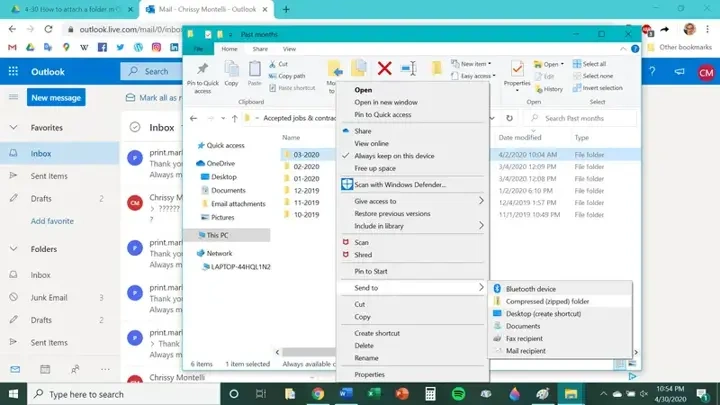
Steps
- Find your folder
- Right-click it
- Choose:
“Send to” - Click:
“Compressed (zipped) folder”
Done.
Windows creates a ZIP version automatically.
How to Create a ZIP Folder on Mac
Also simple.
Steps
- Find your folder
- Right-click
- Choose:
“Compress”
Mac instantly creates a ZIP file.
Pretty quick honestly.
How to Attach a ZIP Folder to Gmail
Gmail works great with ZIP files usually.
Steps
- Open Gmail
- Click Compose
- Click attachment icon
- Select ZIP file
- Upload and send
Done.
Gmail Attachment Size Limit
Gmail usually allows:
25 MB max attachment size.
Anything bigger?
Google may suggest:
Google Drive sharing instead.
How to Attach a Folder to Outlook
Microsoft Outlook also supports ZIP files.
Steps
- Compress folder first
- Open Outlook
- Create new email
- Attach ZIP file
- Send
Very straightforward honestly.
Outlook Attachment Limits
Outlook limits vary by account type.
Usually around:
20 MB to 25 MB.
Large files may require:
OneDrive sharing instead.
Can Yahoo Mail Send ZIP Files?
Yep usually.
Yahoo supports:
- ZIP attachments
- Compressed folders
Same process honestly.
What About Apple Mail?
Apple Mail works similarly too.
Just:
- Compress folder first
- Attach ZIP file normally
Very easy.
Why Some ZIP Files Get Blocked
This confuses people constantly.
Email providers sometimes block ZIP files containing:
- Executable files
- Programs
- Scripts
- Suspicious content
Mostly for security reasons.
What If Your ZIP File Is Too Large?
Very common problem honestly.
Big folders often exceed:
attachment size limits.
Then you need cloud sharing instead.
Best Ways to Send Large Folders
Usually:
- Google Drive
- OneDrive
- Dropbox
- iCloud Drive
Much easier for huge files honestly.
How Google Drive Folder Sharing Works
A very popular method.
Steps
- Upload folder to Google Drive
- Right-click folder
- Click Share
- Copy link
- Send link by email
Simple honestly.
How OneDrive Folder Sharing Works
Microsoft users often use:
OneDrive.
Same basic idea:
- Upload folder
- Share link
- Email recipient
Very common for Outlook users.
Why Cloud Sharing Is Better for Big Folders
Because:
- No attachment limits
- Faster uploads
- Easier downloads
- Better for videos/photos
Much smoother honestly.
Can Recipients Download Entire Folders?
Yep.
ZIP files preserve:
- Folder structure
- Subfolders
- File organization
Recipients usually just:
- Download ZIP
- Extract contents
Done.
What Does “Extract ZIP File” Mean?
Extraction means:
opening the compressed folder.
Basically unpacking it.
How to Extract ZIP Files on Windows
Usually:
- Right-click ZIP
- Click:
“Extract All”
Done.
How to Extract ZIP Files on Mac
Usually:
double-click ZIP file.
Mac handles extraction automatically.
Very easy honestly.
Can Phones Send ZIP Folders Too?
Yep.
Android and iPhone both support ZIP files now.
Though desktop computers are usually easier for large folders honestly.
How to Send Folders From iPhone
Usually:
- Compress folder in Files app
- Attach ZIP file
- Send via Mail app
Simple enough.
How to Send Folders From Android
Usually:
- Compress folder
- Attach ZIP file
- Send through Gmail or Outlook
Very similar process.
Can You Password-Protect ZIP Files?
Absolutely.
Some ZIP tools allow:
- Password encryption
- Secure sharing
- Protected archives
Useful for sensitive documents honestly.
Why Password-Protect ZIP Files?
Helps protect:
- Financial files
- Work documents
- Personal information
- Private photos
Adds extra security layer.
Can ZIP Files Contain Viruses?
Unfortunately yes sometimes.
That’s why email providers scan ZIP attachments heavily.
Always avoid:
- Unknown ZIP files
- Suspicious senders
- Unexpected attachments
Very important honestly.
Why Some Companies Block ZIP Attachments
Businesses often restrict ZIP files for security reasons.
Especially if ZIP contains:
- Programs
- Scripts
- Executables
Security teams hate malware risks honestly.
Common Folder Attachment Problems
People run into these constantly.
File Too Large
Most common honestly.
ZIP File Blocked
Security filters trigger.
Upload Fails
Internet issues happen.
Wrong Folder Attached
Classic mistake.
Corrupted ZIP File
Sometimes compression fails.
Best Practices Before Sending Folder Attachments
Want smoother emailing?
Do this stuff.
Compress Folder First
Always the easiest method.
Check File Size
Avoid attachment limit issues.
Rename Folder Clearly
Makes downloads easier.
Remove Unnecessary Files
Smaller uploads work better.
Scan for Viruses
Especially business files.
Use Cloud Links for Huge Folders
Much safer honestly.
Difference Between Attachments and Cloud Sharing
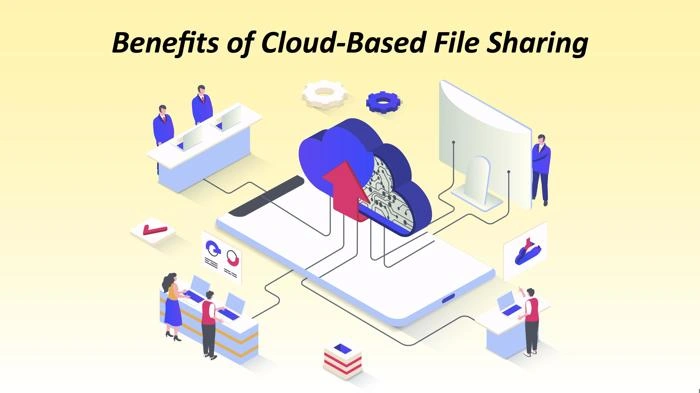
People confuse these constantly.
Attachment
File travels inside email.
Cloud Sharing
Email contains download links instead.
Both work fine honestly.
Which Is Better?
Depends on folder size.
Small Folders
ZIP attachments work great.
Large Folders
Cloud sharing works way better.
Especially videos or huge projects.
Also Read: How to Add an Email Account to Outlook Without Getting Confused
Can You Send Multiple Folders at Once?
Yep.
Usually easiest to:
- Put folders into one master folder
- Compress everything together
Cleaner honestly.
Can Email Compression Reduce Quality?
Usually no.
ZIP compression normally preserves:
- Original files
- File quality
- Folder structure
Very useful honestly.
How Long Does Folder Uploading Take?
Depends on:
- File size
- Internet speed
- Email provider
Huge folders may take quite a while honestly.
FAQs About Attaching Folders to Emails
Can you attach a folder directly to email?
Usually not directly. Compress it into ZIP first.
What is a ZIP file?
A compressed version of a folder.
Can Gmail send ZIP folders?
Yep within attachment size limits.
Why won’t my folder attach?
Most email apps don’t support raw folders.
What if my folder is too large?
Use Google Drive, OneDrive, or Dropbox links.
Can ZIP files contain viruses?
Unfortunately yes sometimes.
Do ZIP files reduce quality?
Usually no.
Can phones send ZIP folders?
Yep, modern phones support this.
Attaching folders to emails sounds confusing at first.
Especially when email apps suddenly refuse to upload them directly.
But honestly?
Once you understand ZIP files and cloud sharing, the whole thing becomes pretty simple.
For smaller folders:
ZIP files work perfectly.
For huge projects or videos:
cloud sharing usually works way better.
And honestly, learning this one little email skill saves tons of frustration once you start sharing larger files regularly.
