
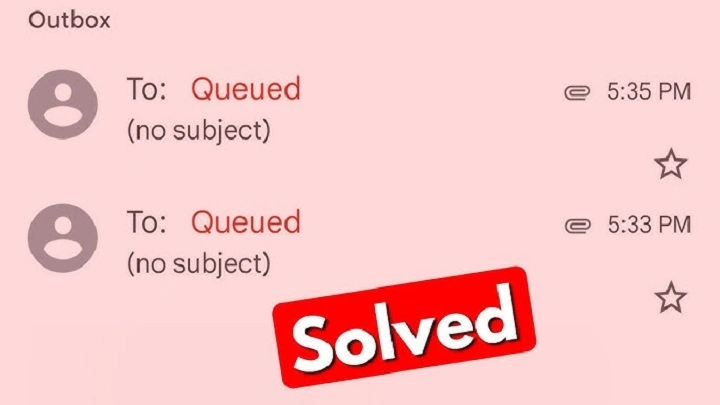
So you hit Send on an email. But wait — it’s not going anywhere. The status says “Queued.” It’s just sitting there. Not sent. Not failed. Just… stuck.
What’s going on? Did it send? Should you try again?
Hey, don’t worry. You’re not alone here. A queued email just means your message is waiting. Like, waiting in line to go out. It’s not broken. It’s not lost. It’s just… waiting.
Why does this happen? Usually simple stuff. Bad internet. Server is busy. File too big. You know, normal tech hiccups.
In this guide, I’ll show you what’s really going on. Why emails get stuck. How to fix them in Gmail. In Outlook. On your phone too. And how to stop it from happening again.
Whether you’re a student, work person, or run a business — this guide’s got you. Simple. Clear. And it works in 2025.
What a Queued Email Actually Means
When an email is queued, it’s sitting in your Outbox. Just waiting to be sent. It’s not lost, okay?
Here’s why it happens:
- Your internet died or got weak
- The mail server is busy or down
- Your email is too big (huge files attached)
- The app is offline or syncing
- You hit your sending limit (happens in work accounts)
Once things get better — like your internet comes back — the email sends itself. Easy.
Think of it like this. Your email is at a busy post office. In line. The clerk will get to it. Just needs a minute.
Fixing Queued Emails in Gmail (Web and Desktop)
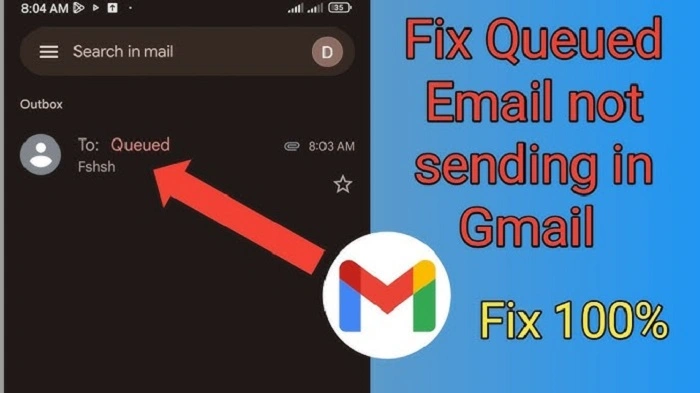
Using Gmail and your message is stuck? No panic needed. It’s usually easy to fix.
Steps:
- Check your internet. Slow Wi-Fi? That’s the top cause. Fix it. Refresh Gmail.
- Open your “Outbox.” You’ll see stuck messages there.
- Click the queued email. Open it. Make sure it’s okay.
- Check file size. Gmail only takes 25 MB files. Bigger? Won’t send. Try making it smaller. Or use Google Drive.
- Make sure Gmail is online. Using offline mode? Your message waits till Gmail connects again.
- Send it again. Once the internet is good, click Send.
Using Gmail through Outlook? Queued messages might show up from sync issues. Restart the app. Clear the cache. That usually fixes it.
Fixing Queued Emails in Gmail App (Android or iPhone)
Queued messages happen more on phones. Why? Lost signal. Background sync fails. You know.
Steps:
- Open Gmail app on your phone.
- Tap the three lines (☰). Opens the menu.
- Go to Outbox.
- Tap the queued email. Says “Queued”? It’s still on your phone.
- Check internet. Turn off airplane mode. Need data or Wi-Fi on.
- Still stuck? Tap Send again. Or copy it to a new email.
- Clear Gmail’s cache (Android only): Settings → Apps → Gmail → Storage → Clear Cache.
Most queued messages send once your phone finds internet again. You can also restart your phone. Forces a sync.
Fixing Queued Emails in Outlook
Outlook does things a bit different. But same idea — emails wait to send when things get better.
Steps:
- Open Outlook.
- Go to Outbox folder. It’s in the sidebar.
- Double-click the queued email. Opens? Good. Check its status.
- Check your internet. Make sure Work Offline is off.
(Look under Send/Receive tab → click Work Offline to turn off.)
- Big file? Make it smaller. Try Insert → Attach File again.
- Click Send/Receive All Folders. This makes Outlook send all waiting messages.
- Still stuck? Restart Outlook. Or delete the email and write it again.
If your mail server is busy, Outlook keeps trying. It’ll send when things clear up.
Quick Reference Table
| App | Why Email Gets Queued | How to Fix It |
| Gmail (Web) | Offline mode, big files, weak Wi-Fi | Connect again, smaller files, resend |
| Gmail (Mobile) | No signal, sync is off | Connect, clear cache, resend |
| Outlook | Work Offline on, server slow | Turn Work Offline off, resend |
| Apple Mail | Bad internet, server issues | Refresh, check SMTP settings |
| Yahoo Mail | Server is holding it | Wait 5-10 minutes or resend |
Resending Queued Emails Automatically
Gmail and Outlook can retry sending on their own. When internet comes back, they send. Want to control this? Here’s how:
In Gmail (Web):
- Go to Settings → Offline. Uncheck Enable offline mail. Now Gmail only sends when online.
- Make sure Sync Gmail automatically is on in settings.
In Outlook:
- Go to File → Options → Advanced → Send/Receive.
- Check Send immediately when connected.
This makes Outlook send queued stuff right when it connects again.
Preventing Emails from Getting Queued
Best fix? Stop it before it happens. Small changes help a lot.
- Get good internet before sending big files.
- Make files smaller. Or use cloud storage.
- Don’t send tons of emails at once. It jams things up.
- Keep your app updated. Old versions have sync problems.
- Watch your limits. Some work accounts limit daily emails.
Getting queued emails often? Check your SMTP settings. Wrong ports or login info cause delays.
Handling Queued Emails on Apple Mail or Yahoo
Using Apple Mail? Queued emails show as “Pending” or “Waiting to Send.” Usually it’s your SMTP server acting up.
To fix it:
- Open Mail app.
- Go to Preferences → Accounts → Server Settings.
- Check your SMTP server is right.
- Check password and login method.
- Save. Close Mail. Open again.
Yahoo Mail? Same thing. Queued messages send when servers work again. Or resend from Outbox anytime.
Also Read: Can You Send an Email to a Phone Number? The 2025 Complete Guide That Actually Works
When to Wait — and When to Resend
Sometimes waiting is best. Quick network glitch? Gmail or Outlook sends it once connected.
But if it’s stuck for over 10-15 minutes? Time to act. Open it. Check connection. Resend it yourself. Every email getting queued? That’s a bigger problem. Check mail settings or SMTP server.
Troubleshooting: Common Queued Email Scenarios
| Scenario | Likely Cause | Fix |
| Message stuck for hours | No connection | Check Wi-Fi/data, resend |
| Only big files get stuck | File too big | Use Drive or OneDrive link |
| All emails stuck in Outlook | Work Offline is on | Turn Work Offline off |
| Stuck on mobile only | Sync is off | Turn on sync in settings |
| Stuck in all apps | Server problem | Wait or call IT |
Best Practices to Keep Your Outbox Clear
Queued messages happen sometimes. But too many? That’s annoying. Here’s how to avoid them:
- Check Outbox often. Make sure nothing’s stuck.
- Use small files or links. Not huge attachments.
- Send when connection is good. Public Wi-Fi? Be careful.
- Don’t click Send many times. Causes errors.
- Clear cache and cookies. Old data causes sync problems on phones.
Keep things clean and connected. Queued emails become rare.
Frequently Asked Questions
Q: What does it mean when an email is queued?
It means your email is waiting. Not failed. Just delayed a bit.
Q: Will queued emails send automatically?
Yes! Once internet or server works again, they send themselves.
Q: How long do queued emails stay in Outbox?
Forever. Until you resend or delete them. Gmail and Outlook don’t delete unsent stuff.
Q: Can I edit a queued email?
Yes! Open it from Outbox. Change it. Click Send again.
Q: What if my email keeps getting queued repeatedly?
That means something’s wrong. Check mail settings. File too big. Or network issues.
A queued email isn’t bad. It’s just a delay. Your email app is saying, “Hold up, I’ll send this soon.”
Know why it happens? You stay calm. Fix it fast. Keep talking to people. Maybe it’s bad Wi-Fi. Maybe the file’s too big. Queued emails are easy to fix. Just a few clicks.
Now you know where to look. Outbox. Internet. Server settings. You won’t lose messages to the queue again. Next time you see “Queued”? Take a breath. It’s not broken. It’s just waiting for its turn.
