
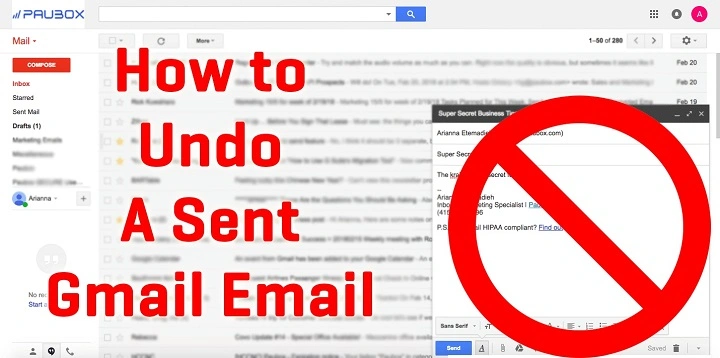
We’ve all done it — you hit send too fast. Perhaps it went to the wrong recipient, had the incorrect subject-line, or the incorrect document. Your heart drops, wishing that you could undo.
If you find yourself wondering, “Can I unsend a message in Gmail?” — the answer is yes, with some caveats. Gmail does have a method of “unsending” an e-mail, but only on a temporary basis. It’s not Microsoft Outlook’s total recall mode, but it’ll get you out of trouble.
Step-by-step process of Gmail recall feature, time limit, how to turn on Undo Send in desktop and mobile, and tips on what to do with undeliverable mail are presented in this article.
Can You Undo an Email in Gmail?
Yes — but not the way we’ve long fantasized. Gmail doesn’t exactly “undo” a sent message as much as give you an immediate chance to resend an email by clicking “Send.”
It’s called Undo Send.
When you have Undo Send enabled, Gmail pauses for a second or two before sending your email. During that brief time, you can undo it from being sent — a paper airplane suspended in mid-air.
And if you act fast enough and click “Undo,” then Gmail will undo sending the message, and the message never gets to your outbox.
So, if you too cannot remember an email a few days later, you can even don’t send it at all.
Gmail Recall vs. Outlook Recall
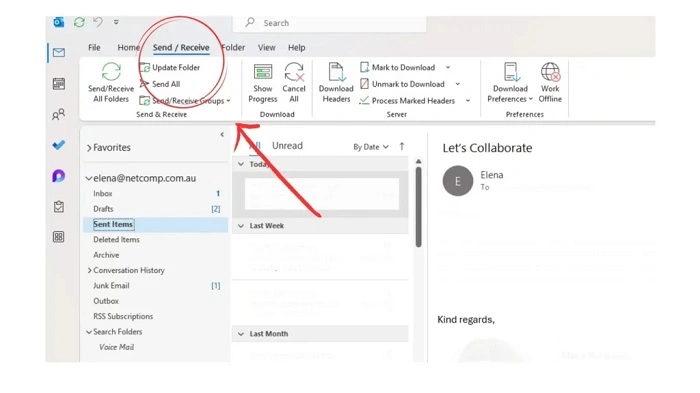
People compare Gmail and Outlook when they recall emails, but the feature is unique.
| Feature | Gmail | Outlook |
| Type of Recall | Undo Send (cancel before delivery) | True recall (attempt to delete from recipient’s inbox) |
| Time Limit | 5–30 seconds after delivery | Can try recall even after delivery |
| Works Across Domains | Yes (for Undo Send) | No (recall does not work outside organization) |
| Reliability | Always within deadline | Only effective if new and in the same context |
How to Turn On Undo Send in Gmail (Desktop)
Gmail Undo Send is turned on by default, but you can set how long you have to cancel an email.
Step 1: Open Gmail Settings
- Go to mail.google.com.
- Click on the top-right gear icon (⚙️).
- Click See all settings.
Step 2: Locate “Undo Send”
- In the General tab, locate Undo Send.
Step 3: Select a Send Cancellation Period
You have the following options:
- 5 seconds
- 10 seconds
- 20 seconds
- 30 seconds
Tap 30 seconds to have sufficient time to cancel a message.
Step 4: Save Changes
- Scroll down and tap Save Changes.
Now, when you send a message, you have up to 30 seconds to unsend it.
How to Unsend a Message in Gmail on Desktop
Because you have Undo Send enabled, sent messages that need to be unsent are a breeze.
Step 1: Send an Email
Write and send like usual.
Step 2: Look in the Bottom-Left Corner
When you click “Send,” you’ll notice a light indicator in the bottom-left corner:
“Message sent. Undo. View message.”
Step 3: Click “Undo”
If you actually do click the Undo in this time, Gmail will merely bring the mail sending process to a halt automatically.
Step 4: Edit or Delete
When you click Undo, Gmail brings your message back up open in the composition box.
You can now:
- Edit the message
- Alter the recipient
- Attach files
- Or delete the message altogether
That’s how you “recall” a message in Gmail — by keeping it from departing your account.
Unsend a Message in Gmail App (iPhone & Android)
There’s Undo Send in the mobile Gmail app, just a little different.
Step 1: Send an Email
Send an email through your Gmail app.
Step 2: Find the “Undo” Popup
As soon as you send, the screen bottom will glow with a black stripe that includes the following text:
“Sarium was sent – Undo.”
Step 3: Tap “Undo”
- Tap Undo before it’s gone.
Your message is in draft and can be edited or deleted.
Too much time has elapsed (after your preferred cancellation time), the message has been sent, and you cannot recall it.
How to Turn On Undo Send Time on Mobile
Undo Send time is tied with your Gmail web settings.
How to modify it:
- Use Gmail on a computer.
- Go to Settings → See all settings → General → Undo Send.
- Choose the intended delay (max 30 seconds).
The same delay will be automatically applied on your Gmail app.
Recall an Email Sent to the Wrong Person
If you notice you have sent an email to the wrong person:
- Act fast. Click Undo within the time limit.
If a countdown elapses, recall is not possible but sending a follow-up correction message is.
Sample follow-up:
“Hi — ignore my previous email — I sent it to you by mistake.”
Being prompt and professional will remedy the mistake even if recall is not possible.
How to Recall a Sent Message
In case the Undo Send window has expired, then there is no built-in Gmail feature which will fetch the message back to the recipient’s inbox.
Do this instead:
- Send a correction message: Retract or fix your last message with grace.
- Use Confidential Mode: For all mails to be sent from now onward, you can make messages auto-destruct.
- Delete access (for confidential mails): You can revoke viewing access at your will, if you had sent it in confidential mode.
In Confidential Mode:
- Click Compose.
- Scroll down and tap on the Lock & Clock icon (🔒⏰).
- Specify an expiration date (1 day to 5 years).
- You can also specify an SMS passcode (optional).
- Tap Save.
Do later:
- Open Sent Mail.
- Find the confidential message.
- Tap Remove access.
This will not recall the email, but take away the rights of the recipient to open or forward the email again.
How to Recall Emails Sent in Google Workspace (Business Accounts)
If your company is on Google Workspace (formerly G Suite), there may be some feature that administrators can have for dealing with recall of email.
Admins can:
- Recall messages using compliance rules.
- Block delivery on certain domains.
- Recall a message if it has not left the company network.
This is really not a true recall, however. If an email has been opened or exited your domain, it can’t be recalled.
For end-users, Undo Send behaves exactly as it does on standard Gmail — with a short delay window.
How to Resend or Correct an Email You Forgot
If you’ve shut your Undo window or the message has passed already, use this to recover with style.
Option 1: Send a Fix
For fact or attachment error:
“Hi [Name], I just realized the document emailed out wasn’t the correct one. You’ll get the correct one attached.”
Option 2: Apologize and Explain
For sending to incorrect person:
“Apologies, sent to wrong person. Ignore.”
Option 3: Follow Up with an Update
If you omitted something critical:
“More background to my last email — here are the facts straight.”
Getting it right and quickly demonstrates that you’re responsible and avoids confusion.
How to Practice Safe Sending to Evade Recalls
Prevention is better than cure. Best practice is as follows:
- Turn on Undo Send (30 seconds).
Set the timer as long as you can. Those last few seconds may save your blushes. - Double check recipients.
Be aware of Gmail’s sneaky prompt — double check each address before sending. - Use labels or contact groups with caution.
Ensure group emails go to the correct list. - Double check your message.
Rapidly scan spelling, tone, and attachments. - Attachments stick around.
Once you have written your message, attach files before you click send — not half way. - Send test email.
When sending to multiple recipients, send an email test first to yourself.
These are habits that make recall unnecessary in the first place.
How to Use Gmail Labs and Add-ons to Enable Recall-Like Functions
Gmail does not have post-send recall, but third-party applications have recall-like functions.
Examples:
- Boomerang for Gmail: Provides scheduling, reminder, and delayed sending.
- Right Inbox: Provides defer send and follow-up tracking.
- Mailtrack: Informs you whether your mail had been opened and if you could reply immediately.
They are not recall tools but put you in control of when and how you’re sending an email.
How to Recall a Message Using Scheduled Send
If you’re a click-and-send-to-think-about-it-later person, use Schedule Send to keep control.
Steps:
- Click Compose.
- Compose your message.
- Click the right-pointing arrow next to Send.
- Choose Schedule send.
- Choose a date and time.
Your message is left in the Scheduled folder pending.
If you’ve changed your mind before its delivery:
- Go to Scheduled.
- Open the message.
- Click Cancel send.
You can also delete or edit the email — do-it-yourself recall.
How to Undo a Sent Email in Gmail with Undo Send: Real-Life Scenario
Scenario: You have already sent off your report to the boss, then realized you’ve forgotten the attachment.
What happens:
Gmail shows: “Message sent. Undo. View message.”
You click Undo.
The compose window appears again with your message intact.
You attach the overlooked attachment and re-send.
This half-second operation rescues you from that cringe-worthy “Oops, forgot attachment!” email down the road.
How Much Time You Have to Unsend an Email in Gmail
You can set Undo Send timer in Gmail from 5 to 30 seconds.
After the time period is up, the mail goes out for good and can’t be retracted.
That is why everybody sets it on 30 seconds — it’s the best buffer without being late.
How to Unsend Send in Gmail in Other Devices
| Device | Where “Undo” Is Located | How to Do It |
| Desktop | Bottom-left when sending | Click “Undo” within 30 seconds quickly |
| Android | Bottom-bar when sending | Tap “Undo” quickly |
| iPhone/iPad | Bottom-bar when sending | Tap “Undo” quickly |
Keep in mind that if you’ve taken enough time, Gmail auto-sends.
Test Gmail’s Undo Send Feature
Try it once before a habit gets too broke:
- Send yourself a test.
- Press “Undo” immediately.
- Test whether Gmail does not reopen the draft again and does not land in Sent Mail.
If your email never lands in Sent Mail, your Undo Send feature is working at its best.
How to Enable Undo Send on Gmail Confidential Mode
To enable Undo Send with Confidential Mode for confidential messages, follow these steps:
- Write your email.
- Enable Confidential Mode (lock icon).
- Insert a passcode or an expiration date.
- Instruction to send.
- Press Undo if you catch your mistake in time, in 30 seconds.
- Or you can still withdraw access later from Sent Mail → Remove Access.
Your “recall” ultimate option for confidential emails.
Also Read: How to Create an Alias in Gmail: The Complete 2025 Step-by-Step Guide to Smart Email Organization
Don’ts to Follow While Trying to Recall Emails
- Neglecting to use Undo in time.
Past your time, your message is gone. - Confusing Undo with Delete.
Deleting an email out of view doesn’t remove it from the recipient’s inbox. - Thinking you can recall emails that you’ve previously sent.
You can’t. It’ll only hold emails up before sending. - Not turning it on.
Undo Send can be achieved without the timer, but turning the timer for 30 seconds guarantees it.
Tips for Rescinding or Correcting Errors
- Breathe deep always — we all make email mistakes.
- In case of memory failure, send a follow-up apology or correction.
- Do not tab out Undo Send — do not shorten it — leave it on screen.
- Use scheduled send for emergency or urgent emails.
- Enable notifications so you won’t miss Undo.
Reliability and clear mind can fix nearly any email mistake.
Quick Recap
Is it possible to undo an email in Gmail?
Yes — but just briefly with Undo Send.
Steps:
- Send your message.
- Find “Undo” in the bottom left.
- Click within 5–30 seconds.
- Modify or delete the message.
Once that has expired, Gmail can’t recall it — though you can still follow up or cancel confidential mail.
FAQs About Recall Emails in Gmail
Can I recall a message after sending?
No. You can recall only prior to delivery with Undo Send.
Can I recall a message from Gmail app?
Yes. Tap “Undo” immediately after sending from the pop-up menu.
How long do I have to recall a message?
5, 10, 20, or 30 seconds based on your Gmail settings.
Can I recall a message that I sent the other day?
No. You cannot undo it once it is delivered.
What happens if I sent an e-mail in error confidentially?
You can reverse it from your Sent Mail if you sent in Confidential Mode.
Can you “undo” a message in Gmail? Yes — in 30 seconds, with Undo Send.
Gmail undo does not erase mail as Outlook but keeps you from messing up in the first place. With a quick setting switch, recall a message, correct errors, or attach documents in seconds.
The secret is foresight and haste. Turn on Undo Send, use Scheduled Send for long messages, and follow up in a timely manner in case an error somehow still makes it through.
If you know about it, you’ll never dread a typo email again. Gmail’s recall window is your get-out-of-jail-free card — and nine times out of ten, that will be all you ever need to get it accomplished.
