
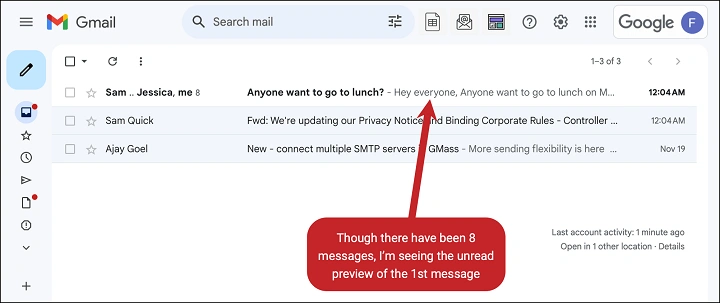
Threads can be helpful. Until they aren’t. One moment you’re following a simple exchange. The next, you’re digging through a stacked conversation trying to find one attachment, one sentence, one approval. If you’ve wondered how to stop Gmail from grouping emails, you’re asking for clarity. You want one message per line. Clean. Visible. No surprises. This guide shows you how to turn off conversation views on the web, on Android, and on iPhone, plus smart habits that keep your inbox organized after you unstack it. We’ll keep it simple. Humans. Practical. And yes—by the end, you’ll know exactly how to stop Gmail from grouping emails without losing your mind.
What “Conversation View” Actually Does

Gmail groups messages by subject and participants. That’s the conversation view. It turns many related emails into one “stack” in your inbox. Replies live under the same umbrella. New messages join the thread. Convenient for some. Confusing for others.
With conversation view on, you see one line for the whole thread. With conversation view off, every email gets its own line. If you want to stop Gmail from grouping emails, you’re turning off that thread behavior so each message stands alone.
Why Many People Turn It Off
You’re not being picky. You’re choosing clarity.
- Attachments are right there. No digging inside a stack.
- Forwarding is clean. You send just one message, not the whole chain.
- Fewer “reply to the wrong part” mistakes.
- You can triage quickly. One email, one decision.
- Your brain relaxes. One subject line per message feels simpler.
In short: you stop Gmail from grouping emails so your eyes, time, and focus work with you—not against you.
Turn Off Conversation View on Desktop (Web)
This is the most direct path. Two ways to do it. Both are quick.
Quick Settings Path
- Open Gmail in your browser.
- Click the gear icon in the top right to open Quick settings.
- In the list, find Conversation view.
- Select Conversation view off.
- Gmail reloads. Messages appear individually.
Full Settings Path
- Click the gear icon → See all settings.
- In the General tab, scroll to Conversation View.
- Choose Conversation view off.
- Scroll down and click Save Changes.
You did it. This single switch is the heart of how to stop Gmail from grouping emails on the desktop.
Turn Off Conversation View on Android
The Gmail app listens to a per-account toggle. Quick and done.
- Open the Gmail app.
- Tap the three-line menu in the top left.
- Scroll down and tap Settings.
- Choose the account you want to change.
- Find the Conversation view and uncheck it.
Your inbox now shows one line per message. If you use multiple accounts, repeat for each. When you stop Gmail from grouping emails on Android, the change sticks until you toggle it back.
Turn Off Conversation View on iPhone or iPad
Same idea. A simple switch.
- Open the Gmail app.
- Tap the menu icon.
- Scroll down and tap Settings.
- Select the account.
- Toggle Conversation view off.
Now every email stands alone. Clean. Predictable. Your thumbs can rest.
What Changes After You Turn It Off

You’ll notice a few differences, most of them helpful.
- Your inbox will look longer. A ten-message thread becomes ten lines, not one.
- Unread counts reflect each separate message.
- Attachments and previews are easier to spot.
- Search results feel more precise because each email is a distinct hit.
- Forwarding or printing one message is simple—no trimming needed.
This is why people stop Gmail from grouping emails: fewer clicks, less hunting, more flow.
Keep Your Inbox Tidy Without Threads
Threads provided context. Without them, you’ll lean on a few light habits. They’re easy.
- Use labels like Projects, Finance, Family, Travel.
- Archive often. Out of the inbox, still searchable.
- Star or mark as important the items that need action.
- Snooze messages to the right moment so they reappear when you can act.
- Name your filters clearly so mail routes itself.
These small moves make the switch painless. You stop Gmail from grouping emails and gain calm without chaos.
Create and Use Labels Like Folders
Labels are Gmail’s folders. They’re flexible and fast.
- In the left sidebar, scroll to Labels and click Create new label.
- Give it a short, clear name.
- Nest labels if you want a hierarchy (e.g., Clients/Acme).
- Drag messages onto a label to move them out of the inbox.
- Use the Move to button or press v (after enabling keyboard shortcuts) to file quickly.
This replaces the “thread context” with purposeful homes for your mail. You stop Gmail from grouping emails and still keep order.
Automate Filing with Filters
Let Gmail do the filing while you get real work done.
- Click the search bar options icon.
- Add criteria like From, Subject, Has words, Size, or Has attachment.
- Click Create filter.
- Choose Skip the Inbox (Archive it).
- Choose Apply the label and select your label.
- Optionally apply the filter to matching conversations.
- Create a filter.
Now messages file themselves. You’ve effectively stopped Gmail from grouping emails and also stopped yourself from doing repetitive filing. Relief.
Speed Up with Keyboard Shortcuts
Shortcuts turn seconds into breaths of time.
- Enable them: Settings → See all settings → General → Keyboard shortcuts on.
- v = Move to (file to a label and remove from inbox).
- l = Label as (add a label but keep in place).
- e = Archive (remove Inbox label, keep labels intact).
- s = Star (mark for attention).
- u = Mark as unread (useful for reminders).
Once you stop Gmail from grouping emails, these keys give you the same speed that threads used to promise—without the clutter.
Smart Search Recipes You’ll Use Daily
Search is your superpower. A few operators save minutes.
- By sender: from:[email protected]
- With files: has:attachment
- Big items: larger:5M
- Old mail: older_than:6m
- Only inbox: in:inbox
- Not inbox (already filed): -in:inbox
- Specific project: subject:”Q4 roadmap”
Pair a search with Select all → Move to, and you’ll curate your inbox in one sweep. It’s another way to stop Gmail from grouping emails and start grouping your attention instead.
Troubleshooting After You Unthread
A few bumps are normal. Here’s how to smooth them.
- “I turned it off on the web, but my phone still threads.”
Toggle Conversation view off in the mobile app too. Each device keeps its own app setting.
- “I moved an email, but it still shows in Inbox.”
You labeled it, but didn’t remove the Inbox label. Use Move to or label + Archive.
- “I can’t find something I filed.”
Search without fear. Try in:all plus a keyword. Check the label you used. It’s there.
- “My inbox feels too long now.”
Use labels, stars, and Snooze. Archive the rest. One pass. Clean table.
- “I miss the context sometimes.”
Open the label or use a tight search by subject or sender. You’ll see related messages fast.
You can stop Gmail from grouping emails and still retrieve context—with intent, not clutter.
One-Minute Daily Routine
You don’t need an hour. You need a rhythm.
- Open inbox.
- Start anything that needs action today.
- Move non-urgent items to labels with v.
- Archive the rest with e.
- Snooze a few messages at the right time.
- Close Gmail. Get back to life.
This routine anchors your decision. You stop Gmail from grouping emails and start guiding your day.
Team and Workflows: Making the Switch Together
If your team relies on shared context, switching off threads can feel risky. Ease into it.
- Agree on clear subject lines that include project tags.
- File sent mail, too—label your own outgoing messages so both sides of a conversation land together.
- Use Drive for attachments and add short summaries in the email body.
- If you need thread-like views for a project, create a label per project and filter into it.
- Share a quick, two-line “filing rules” doc so everyone knows the labels.
When you stop Gmail from grouping emails, you gain focus. With a shared system, your team gains it too.
Frequently Asked Questions
Does turning off the conversation view delete anything?
No. It only changes the display. Your emails remain intact and searchable.
Will this setting sync across all my devices?
The web setting affects the account on the web. Mobile apps have their own per-account toggles, so set it there as well.
Can I keep threads for some labels and not others?
Threading is an account display setting, not label-specific. It’s all on or all off. Use labels and search for context per topic.
Will filters still work after I turn off threads?
Yes. Filters, labels, stars, and Snooze work the same. In many ways they work better, because each message is a clean unit.
What if I change my mind later?
Just toggle the Conversation view back on. You can stop Gmail from grouping emails today and return to threads tomorrow—no data lost.
Your inbox should feel like a room you want to enter. Sunlight on the desk. Tools where you left them. When you stop Gmail from grouping emails, you choose that feeling. One message per line. One decision at a time. You file with intention, not exhaustion. And if a day comes when you want the stacks back, the switch is waiting. Until then, let simplicity lead. Let clarity breathe. Your attention will thank you.
