
Setting up Outlook for the first time can honestly feel confusing.
You open the app expecting:
“Just sign in and be done.”
But then suddenly Outlook starts asking about:
- IMAP
- POP3
- SMTP
- Sync settings
- Passwords
- Servers
And now your brain hurts.
Especially if you’re trying to add:
- Gmail
- Yahoo Mail
- Work email
- School account
- Another Outlook account
The good news though?
Most of the time adding an email to Outlook is actually pretty easy now.
Modern Outlook versions do most of the hard stuff automatically.
You usually just need:
- Email address
- Password
- Internet connection
That’s basically it honestly.
Let’s break down exactly how to add email accounts to Outlook step by step without the confusing tech overload.
What Does “Add Email to Outlook” Mean?
Basically:
connecting your email account to Outlook so you can:
- Send emails
- Receive emails
- Sync inboxes
- Manage messages in one place
Instead of opening multiple email websites constantly.
Very convenient honestly.
What Is Outlook?
Microsoft Outlook is Microsoft’s email app and service.
People use it for:
- Work emails
- Personal accounts
- Calendars
- Contacts
- Meetings
- Business communication
Very common worldwide honestly.
Can Outlook Handle Different Email Providers?
Absolutely.
Outlook supports:
- Gmail
- Yahoo Mail
- iCloud
- Microsoft accounts
- Work emails
- School accounts
- Custom domains
Very flexible honestly.
Why People Add Multiple Emails to Outlook
Honestly?
Lots of reasons.
Easier Inbox Management
Everything stays in one app.
Work and Personal Together
No switching apps constantly.
Better Organization
Folders and rules help a lot.
Calendar Integration
Especially useful for work honestly.
Faster Email Access
Desktop apps often feel quicker.
How to Add an Email to Outlook Desktop App
Let’s start with computer Outlook first.
Usually easiest, honestly.
Step 1: Open Outlook
Launch Outlook normally.
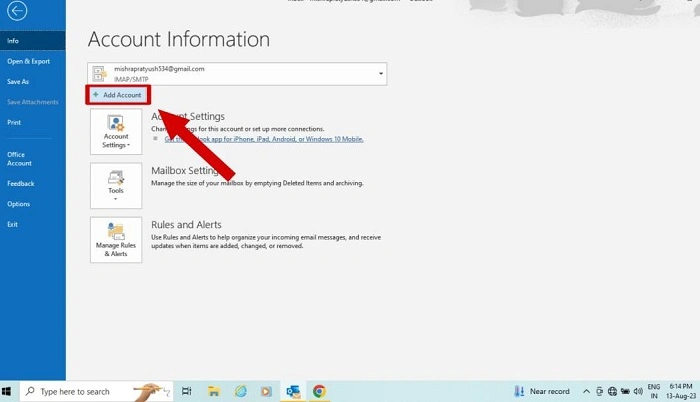
Step 2: Go to File
Usually top-left corner.
Step 3: Click “Add Account”
Outlook opens the setup screen.
Step 4: Enter Email Address
Type your email carefully.
Very important honestly.
Step 5: Enter Password
Outlook usually detects settings automatically now.
Step 6: Finish Setup
Click:
Done or Finished.
Then Outlook syncs everything.
How Long Outlook Setup Takes
Usually:
a few seconds to a few minutes.
Depends on:
- Internet speed
- Mailbox size
- Account type
How to Add Gmail to Outlook
Very common honestly.
Steps
- Open Outlook
- Add Account
- Enter Gmail address
- Sign into Google
- Allow permissions
- Finish setup
Simple honestly.
Why Gmail Sometimes Asks for Permission
Google protects account security heavily.
So Gmail often asks:
whether Outlook can access your emails.
Normal honestly.
How to Add Yahoo Mail to Outlook
Yahoo setup works similarly.
Usually:
- Add account
- Enter Yahoo address
- Sign into Yahoo
- Approve access
Done.
How to Add Work Email to Outlook
Work emails can vary honestly.
Especially company accounts using:
- Microsoft Exchange
- Microsoft 365
- Custom servers
Usually IT departments provide login info.
What Is Microsoft Exchange?
Exchange is Microsoft’s business email system.
Very common for:
- Offices
- Schools
- Companies
Handles:
- Calendars
- Contacts
- Meetings
All together honestly.
Can Outlook Automatically Detect Settings?
Usually yes now.
Modern Outlook versions automatically configure:
- Servers
- Ports
- Security settings
Very helpful honestly.
What are IMAP and POP3?
These terms confuse people constantly.
IMAP
Syncs emails across devices.
Recommended honestly.
POP3
Downloads emails to one device mostly.
Older method.
Most people should use IMAP honestly.
Why IMAP Is Better for Most Users
Because emails stay synced across:
- Phones
- Tablets
- Computers
- Webmail
Way easier honestly.
What Is SMTP?
SMTP handles outgoing mail.
Basically:
the sending system.
Outlook often configures this automatically now.
Also Read: Happy Holidays Email Signature Ideas
What Happens If Outlook Can’t Add Email Automatically?
Sometimes manual setup becomes necessary honestly.
Usually because:
- Custom domains
- Older providers
- Incorrect passwords
- Security settings
Manual Email Setup in Outlook
Usually requires:
- IMAP server
- SMTP server
- Port numbers
- Encryption settings
Sounds scary honestly but usually manageable.
Can You Add Multiple Email Accounts to Outlook?
Absolutely.
Very common honestly.
People often add:
- Personal Gmail
- Work Outlook
- School email
- Side business email
all together.
How Outlook Organizes Multiple Accounts
Each account gets:
- Separate inbox
- Separate folders
- Separate sent mail
Very organized honestly.
Can Outlook Sync Contacts and Calendars Too?
Yep.
Especially with:
- Gmail
- Microsoft accounts
- Exchange systems
Very useful honestly.
How to Add Email to Outlook on Phone
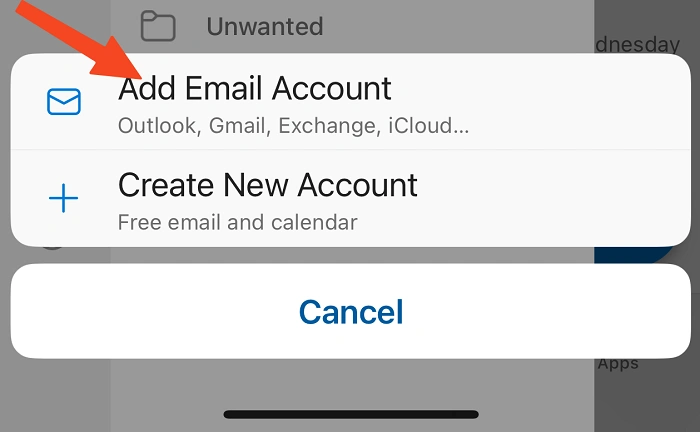
The Outlook mobile app works great honestly.
Usually:
- Download Outlook app
- Open app
- Tap Add Account
- Sign in
- Allow permissions
Very easy honestly.
Outlook Mobile vs Desktop
Desktop usually offers:
- More advanced settings
- Better organization tools
- Full features
Mobile focuses more on convenience honestly.
Common Problems Adding Email to Outlook
People hit these constantly.
Wrong Password
Most common honestly.
Two-Factor Authentication Issues
Extra security sometimes blocks login.
Incorrect Server Settings
Especially custom domains.
Weak Internet
Interrupts setup.
Security Permissions Not Approved
Google/Yahoo often require approval.
Why Outlook Keeps Asking for Password
Usually because:
- Password changed
- Authentication failed
- Sync issues exist
- Old credentials saved
Very common honestly.
Can Antivirus Software Affect Outlook Setup?
Absolutely sometimes.
Security software may block:
- Mail syncing
- Account verification
- Server connections
Worth checking honestly.
How to Remove an Email Account From Outlook
Usually:
- Go to Account Settings
- Select account
- Remove account
Easy honestly.
Does Removing Account Delete Emails?
Depends honestly.
Usually:
- Removes local access only
- Emails still exist online
Unless local-only POP accounts are used.
Should You Use Outlook for Personal Email?
Honestly?
Lots of people do.
Especially if they like:
- Unified inboxes
- Desktop apps
- Better organization
- Calendar tools
Very practical honestly.
Why Businesses Love Outlook
Because Outlook integrates deeply with:
- Microsoft Office
- Teams
- Calendars
- Meetings
- Corporate systems
Huge business ecosystem honestly.
Best Practices When Adding Email to Outlook
Want a smoother setup?
Do this stuff.
Use Correct Password
Double-check honestly.
Enable IMAP
Especially for Gmail.
Keep Outlook Updated
Old versions cause issues.
Use Strong Internet Connection
Avoid interruptions.
Turn On Two-Factor Authentication
Safer honestly.
Common Outlook Email Mistakes
People struggle with these constantly.
Mixing POP and IMAP
Creates sync confusion honestly.
Forgetting App Passwords
Especially Gmail security setups.
Wrong Server Settings
Custom domains are often tricky.
Ignoring Security Prompts
Prevents setup completion.
FAQs About Adding Email to Outlook
Can Outlook connect to Gmail?
Absolutely yes.
Does Outlook support Yahoo Mail?
Yep.
What is IMAP?
Email syncing method across devices.
Is Outlook free?
Basic versions often are.
Can I add multiple emails to Outlook?
Definitely.
Does Outlook sync calendars too?
Usually yes.
Why won’t Outlook accept my password?
Often security or authentication issues.
Is Outlook good for business email?
Very popular honestly.
Adding an email account to Outlook honestly sounds harder than it really is now. Modern Outlook versions handle most setup automatically.
Usually all you need is:
- Email address
- Password
- A few clicks
And once everything syncs properly?
Managing email becomes way easier honestly.
Especially if you’re juggling:
- Work accounts
- Personal inboxes
- School emails
- Multiple projects
Because instead of checking five different apps all day…
Outlook brings everything together in one place.
