
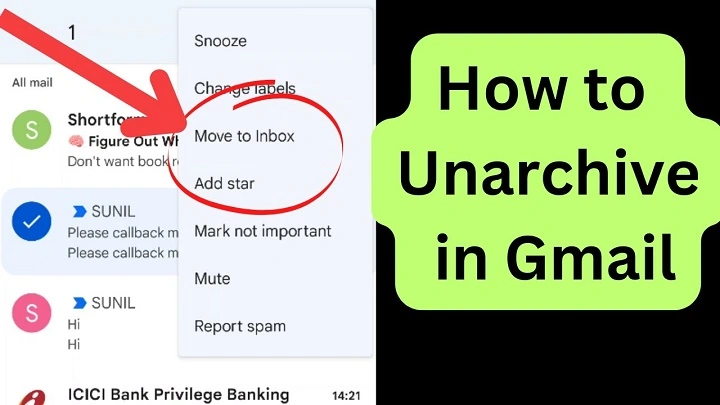
Here’s a familiar moment. Stashed away some messages to clear the clutter – good idea at the time. Yet suddenly, one slips out of reach. Where did it vanish? Happens more than anyone admits. You’re not alone in this.
Searching old messages might seem like digging through a maze. Every program stores them somewhere new, so it’s tough to guess. Still, pulling them back takes just a few steps when you’ve seen the path.
Here’s the way to get those emails again. One step at a time, we go over Gmail first. Then Outlook shows up. Apple Mail comes after that. Other apps tag along too. Finish this, skills grow without shouting about it.
What Does It Mean to Unarchive an Email?
Back on your desk, that email looks just as it did before. Picture pulling a book off the shelf – same pages, same cover, nothing added. Its spot shifts, yet everything inside remains untouched. Where it rests is the only thing different now.
Back in the inbox it goes once unarchived. Just like that, there it is – visible, ready. Doing what you want with it? Now possible.
Wait – changed your mind? Tuck it back into the archive. Totally fine.
Where Archived Emails Go
Hold on a sec. Those archived messages still exist. Not deleted – just tucked away out of sight.
Not every inbox works the same way. One might stash messages in the Archive. Another could slide them into a spot labeled All Mail. Yet searching brings them back – no matter where they hide.
Picture sorting blocks into a box. Hidden away, yet ready whenever you reach for one.
How to Unarchive an Email in Gmail
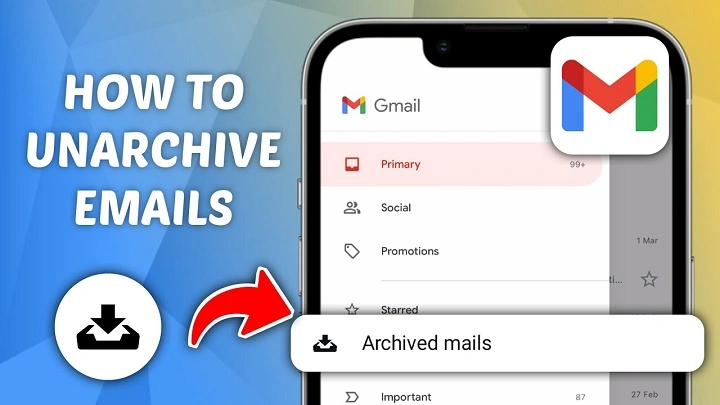
Okay, Gmail’s a bit weird here. There’s no actual Archive folder. Instead, Gmail removes the “Inbox” label from archived emails. They end up in “All Mail” – which is basically everything you’ve ever received.
Confusing? Yeah, kinda. But unarchiving is still a breeze.
Unarchive an Email in Gmail (Desktop)
Ready? Here’s what you do on your computer:
- Open Gmail
- Click “All Mail” on the left side
- Find your email (search helps!)
- Open it up
- Click “Move to Inbox”
Boom! Email’s back where you want it.
Unarchive an Email in Gmail (Mobile App)
On your phone? Easy peasy:
- Open the Gmail app
- Tap “All Mail”
- Find and open your email
- Tap those three dots
- Hit “Move to Inbox”
And just like that, it’s back!
How to Unarchive an Email in Outlook
Outlook keeps things simple with an actual Archive folder. No guessing games here! Moving emails back is pretty straightforward.
Unarchive an Email in Outlook Desktop
Here’s the desktop way:
- Fire up Outlook
- Click on “Archive” folder
- Find your email
- Right-click on it
- Pick “Move” then “Inbox”
Done! Your email’s home again.
Unarchive an Email in Outlook Web
Using Outlook online? No problem:
- Log into Outlook.com
- Open your Archive folder
- Click on the email
- Hit “Move to Inbox”
That’s all there is to it!
How to Unarchive an Email in Apple Mail
Apple Mail plays nice with a clear Archive mailbox. Works the same whether you’re on Mac, iPhone, or iPad.
Let’s bring those emails back!
Unarchive an Email in Apple Mail (Mac)
On your Mac:
- Open Apple Mail
- Click “Archive” mailbox
- Pick your email
- Click “Move to Inbox”
Email restored!
Unarchive an Email in Apple Mail (iPhone and iPad)
On your iPhone or iPad:
- Open Mail app
- Tap “Archive”
- Open the email
- Tap “Move to Inbox”
And we’re done!
How to Unarchive Multiple Emails at Once
Got a bunch to restore? Save time by doing them all together.
Quick heads up – bulk moves can clutter your inbox fast. But if you need ’em, here’s how:
- Select multiple emails (hold Ctrl or Cmd)
- Choose “Move to Inbox”
- Confirm
All your emails jump back at once. Pretty handy, right?
Can You Unarchive an Email by Replying?
Here’s something cool – sometimes replying brings emails back automatically. The conversation wakes up, so some apps think “Hey, this should be in the inbox!”
But honestly? It’s hit or miss. Different apps do different things. If you really need that email visible, just move it manually. Way more reliable.
Why an Archived Email Might Not Appear in the Inbox
So you are unarchived but still can’t see it? Ugh, frustrating! Usually it’s hiding because of your settings.
Common culprits:
- Filters sending it elsewhere
- Priority inbox hiding “less important” stuff
- Custom labels doing their thing
- Conversations grouped weird
Quick fix? Check your inbox settings. The answer’s usually there.
How to Find Archived Emails Quickly
Can’t remember where you archived something? Search is your best friend! Type in keywords, names, or dates.
Archived emails are totally searchable. Once you find it, unarchiving takes one click. See? Not so scary after all!
Unarchiving vs Marking as Unread
Quick note – these do different things! Unarchiving moves the email. Marking unread just adds that blue dot.
Want both? Do both! Great for emails you need to handle later.
Does Unarchiving Notify the Sender?
Nope! The sender has no clue. It’s your inbox – you can organize however you want. Move emails around all day. Nobody knows but you.
Can You Accidentally Delete Emails While Unarchiving?
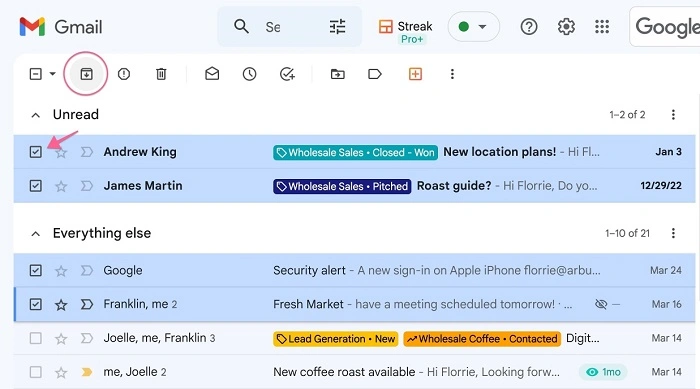
Good news – unarchiving won’t delete anything. But clicking “Delete” instead of “Move”? Yeah, that’ll do it.
Just double-check before you click. Better safe than sorry!
Also Read: “How Your Email Finds Me”: What It Means, How to Use It, and Real Examples in 2026
Best Practices for Using Archive and Unarchive
Want to master your inbox? Here’s what works:
Your inbox should show what needs attention right now. Everything else? Archive it!
Try these habits:
- Archive when you’re done with something
- Unarchive when you need to act again
- Check archived stuff once in a while
- Use search more than folders
- Don’t archive everything (some stuff can just go!)
These little tricks keep email stress-free.
Is Unarchiving Still Useful in 2026?
You bet! Even with all the fancy AI inbox tools, sometimes you need good old manual control.
Unarchiving lets you bring back exactly what you need, exactly when you need it. Simple? Yes. Powerful? Also yes.
Common Myths About Unarchiving Emails
Let’s bust some myths that stop people from archiving:
- “Archived emails disappear forever” – Nope! They’re always there.
- “Unarchiving messes up dates” – Wrong! Everything stays the same.
- “You can’t search archived emails” – False! Search works great.
- “The sender gets notified” – Not true! It’s totally private.
See? Nothing to worry about!
Quick Summary
Here’s the deal: unarchiving just moves emails back to your inbox. Nothing gets deleted. Nothing changes. It’s safe and simple.
Every email app in 2026 makes this easy. Gmail uses “All Mail,” Outlook has an Archive folder, and Apple Mail keeps things clear too. Once you know where to look, bringing emails back takes seconds.
Now go rescue those archived emails!
FAQs
How do you unarchive an email?
Find it in the Archive or All Mail. Click “Move to Inbox.” Done!
Where do archived emails go?
To an Archive folder or All Mail view. Depends on your email app.
Can I unarchive multiple emails at once?
Yep! Select a bunch and move ’em all together.
Does replying unarchive an email?
Sometimes yes, sometimes no. Depends on your email service.
Will the sender know if I unarchive an email?
Nope! They’ll never know. It’s your secret.
