
Occasionally you compose an email quickly. A typo. A phrase that seems incorrect. A missing attachment. A wrong name.
There is something you neglected to mention. Alternatively you might have saved a draft. Now wish to revise it prior to sending.
Modifying an email is straightforward. Once you understand the location of each element. You have the ability to modify drafts, amend messages, rectify errors, alter recipients, revise attachments, rephrase sentences or enhance your message prior to sending it.
This 2025 manual explains how to modify an email in Gmail, Outlook, iPhone, Android work accounts and drafts.
Why Editing an Email Matters Before Sending
Editing assists you:
- fix mistakes
- correct spelling and grammar
- adjust your tone
- add missing attachments
- update recipients
- avoid sending to the wrong person
- rewrite confusing parts
- remove unnecessary info
- sound professional
- transmit the message you intended to deliver
Editing is the difference between a rough email and a clean one.
How to Edit a Draft Email in Gmail (Desktop)
Steps:
- open Gmail.com
- go to the Drafts folder on the left
- select the draft you wish to modify
- change subject, message, or recipients
- attach files if needed
- click Send when ready
Gmail automatically records updates every second.
How to Edit a Draft in Gmail App (iPhone & Android)
Steps:
- open Gmail app
- tap the Menu (three lines)
- tap Drafts
- tap the draft to open it
- edit your message
- tap Send
When you close it Gmail immediately preserves the changes.
How to Edit an Email Before Sending in Outlook (Windows Desktop)
Steps:
- open Outlook
- go to Drafts
- double-click your draft
- edit the email body
- change recipients
- update subject
- add or remove attachments
- click Send
Outlook continually saves your work while you type.
How to Edit an Email Before Sending in Outlook Web (Outlook.com)
Steps:
- open Outlook.com
- sign in
- click Drafts on the left
- open the draft
- edit message
- hit Send
Perfect for work or school accounts.
How to Modify an Email You’ve Opened but Not Yet Dispatched
If the email is still open:
- just click inside
- type changes
- rewrite anything
- send normally
Everything can be modified until you hit Send.
How to Edit an Email in Outlook App (iPhone & Android)
Steps:
- open Outlook app
- tap the Drafts folder
- open draft
- edit message
- tap Send
Outlook mobile automatically preserves modifications.
Steps to Modify an Email Prior, to Sending
If you have arranged an email to be sent later and wish to modify it:
Gmail:
- open Scheduled folder
- click the email
- press Cancel dispatch
- it goes back, to Drafts
- edit
- reschedule or send
Outlook Web:
- open Scheduled
- open the email
- press Cancel to send
- edit in Drafts
Outlook Desktop:
- open Outbox
- double-click the message
- edit
- send again
Emails that are scheduled can be modified at any time.
How to Edit Forwarded or Replied Emails
When you press Forward or Reply:
Steps:
- open the message
- tap Reply, Reply All, or Forward
- tap inside body
- edit text freely
- remove unnecessary quoted text
- send
Subject lines can also be modified prior, to forwarding.
How to Edit Attachments Before Sending
In case you must. Refresh a file:
Steps:
- open draft
- remove attachment (tap X or delete)
- attach the updated file
- send
This ensures the correct version is sent.
How to Edit the “From” Email Address Before Sending
In case you possess accounts:
In Gmail:
- click From dropdown
- choose another email address
In Outlook:
- click From
- choose correct account
This is useful when emailing from a work account compared to an one.
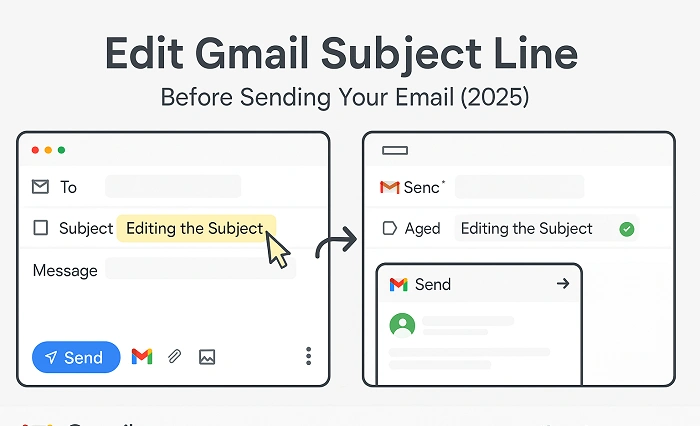
How to Edit the Subject Line of an Email
Steps:
- open draft
- click the subject
- rewrite it
- send
Subject lines can be modified anytime before the message is dispatched.
How to Edit a Partially Written Email After Closing App
Email applications automatically preserve draft messages.
Steps:
- reopen email app
- go to Drafts
- tap your message
- continue writing
- send
No tasks missed.
How to Improve the Tone of Your Email (Quick Edit Tips)
Before sending, check:
- is the message too long?
- is it too direct?
- is it too formal?
- Does it seem hurried?
- Would you like a salutation?
- Would you like a concluding sentence?
Short tone fixes:
- add “Hi” or “Hello”
- use clear sentences
- add a polite closing
- remove emotional lines
- check for professionalism
A targeted revision immediately enhances understanding.
Ways to Correct Errors You Recently Spotted Before Dispatching
If you notice the error while typing:
- stop
- re-read
- fix grammar
- remove extra spaces
- check spelling
- verify attachments
Take 10 seconds to review before tapping Send.
How to Edit an Email for Formatting
You have the option to modify:
- bold
- italic
- underline
- lists
- indentation
- spacing
- link formatting
In Gmail and Outlook:
- highlight text
- tap formatting menu
- choose style
Adjusting formatting enhances clarity.
How to Edit Contacts When Email Address Is Wrong
In case you entered a contact:
Steps:
- remove incorrect recipient
- add correct one
- tap Cc/Bcc if needed
- double-check spelling
This avoids dispatching to a recipient.
Ways to Modify an Email You Have Already Sent (What Can Be Done)
Once an email is sent it cannot be completely modified.
But you can:
- send a corrected follow-up
- resend with the right info
- recall in Outlook (only sometimes)
- undo send in Gmail (few seconds)
Gmail Undo Send:
- click Undo immediately
- message returns to Drafts
- edit
- send again
Outlook Recall functions only:
- within same organization
- in case the recipient has yet to open it
Otherwise, edits must be present.
Also Read: Chop Email: The 2025 Step-by-Step Guide to Cutting, Trimming, and Cleaning Up Your Inbox Fast
Problem Solving: Unable to Modify an Email
Possible reasons:
- email has already been sent
- no Draft stored
- application failed
- email stuck in Outbox
- poor internet
- outdated app version
Fix:
- relaunch app
- refresh Drafts
- check Outbox
- rewrite message if unsaved
- update email app
- reconnect internet
The majority of problems get solved immediately.
Organization Tips After Editing Emails
- rename confusing draft subjects
- delete old drafts
- transfer revised drafts, into directories
- schedule emails if needed
- create templates for frequent edits
- double-check attachments
- trim long messages
Revising becomes simpler when drafts remain well-arranged.
Quick Summary
How to edit an email:
- open Drafts → edit → Send
- Gmail: access draft, modify, attach files send message
- Outlook: open draft or Outox message
- Planned emails: stop sending → modify
- iPhone/Android: tap draft → edit
- edit subject lines anytime
- replace attachments anytime
- Retract Send to correct errors
Two clicks. And your email gets fixed.
FAQs
1. Is it possible to modify an email once it has been sent?
No. However you have the option to Undo Send or dispatch a revised message.
2. What is the process to modify a draft, in Gmail?
Open Drafts → tap the message → edit → send.
3. What is the process to modify a scheduled message in Outlook?
Access Outbox → modify → resend.
4. Am I able to modify recipients to sending?
Yes — remove or add anyone anytime.
5. What caused my changes not to be saved?
Your application might not have synchronized. Close. Open it once more to make edits.
