
Ever need a paper copy of an email?
Maybe it’s a receipt. A work message. Flight details. School stuff. Or maybe you just like keeping important things printed out.
And then suddenly you realize…
“Wait, how do I even print this thing properly?”
Yeah, printing emails sounds easy until formatting gets weird. Or the printer cuts stuff off. Or the email prints like ten extra pages for no reason.
Happens all the time honestly.
The good news?
Printing emails is usually pretty simple once you know where the buttons are and what settings to use.
Let’s walk through everything step by step.
Why People Print Emails
You’d think everything being digital means nobody prints emails anymore.
But nope.
People still print emails for tons of reasons.
Keeping Records
Some folks like physical copies for important stuff.
Especially:
- Bills
- Contracts
- Receipts
- School notices
- Travel information
Work Purposes
Businesses print emails constantly for meetings, files, and paperwork.
Legal or Official Reasons
Sometimes printed emails are needed for:
- Evidence
- Documentation
- Approvals
- Reports
Easier Reading
Some people simply prefer reading paper over screens.
Especially long emails.
What Happens When You Print an Email?
Usually your email app creates a printer-friendly version first.
This version often removes:
- Ads
- Extra menus
- Background clutter
Then your printer makes a physical copy.
Pretty straightforward overall.
Can You Print Emails From Any Email Service?
Usually yes.
Most major email platforms support printing.
Including:
- Gmail
- Outlook
- Yahoo Mail
- Apple Mail
Very common feature.
How to Print an Email in Gmail
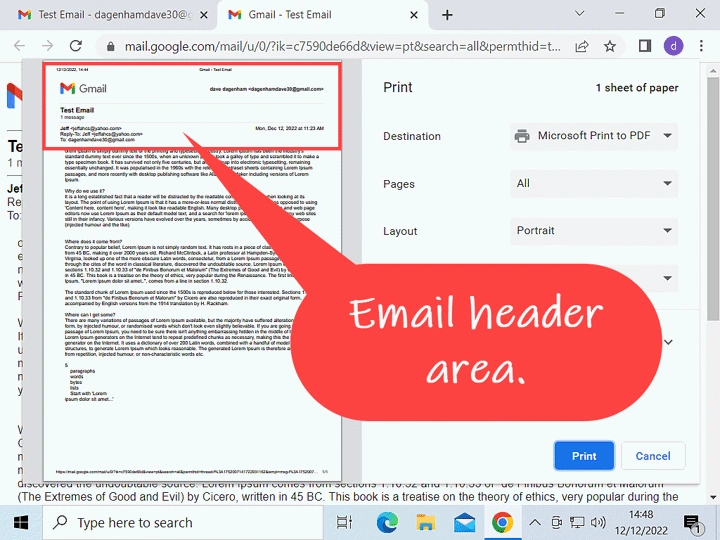
Gmail makes printing pretty easy.
On Desktop
- Open Gmail
- Open the email
- Find the printer icon
- Click Print
- Choose printer
- Hit Print again
Done.
Gmail Shortcut
You can also press:
Ctrl + P on Windows
Command + P on Mac
Very fast method.
How to Print Gmail Emails on Mobile
Using your phone?
No problem.
Steps
- Open Gmail app
- Open the email
- Tap three dots
- Select Print
- Choose printer
Works on both Android and iPhone.
How to Print Emails in Outlook
Outlook also makes this simple.
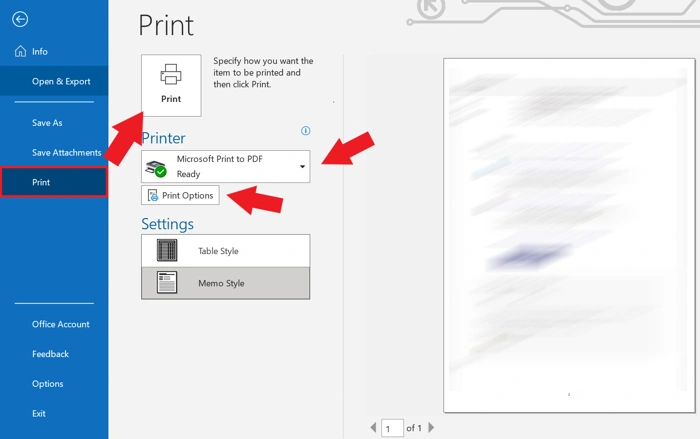
Desktop Outlook Steps
- Open Outlook
- Open the email
- Click File
- Choose Print
- Select printer
- Print email
Easy enough.
Outlook Web Version
Using browser Outlook?
Steps
- Open email
- Click three dots
- Select Print
- Print from browser window
Very similar to Gmail honestly.
How to Print Emails in Yahoo Mail
Yahoo works pretty much the same way.
Steps
- Open Yahoo Mail
- Open the email
- Click More
- Select Print
- Choose printer
Simple process.
How to Print Emails in Apple Mail
Apple Mail supports printing too.
On Mac
- Open Mail app
- Open email
- Click File
- Select Print
- Confirm settings
On iPhone or iPad
- Open Mail
- Open email
- Tap Reply arrow
- Choose Print
- Select printer
Very clean process overall.
How to Print Email Attachments
Sometimes you only want the attachment.
Like:
- Document
- Spreadsheet
- Photo
Usually you:
- Open attachment
- Click Print
- Select printer
Simple.
Can You Print an Entire Email Conversation?
Usually yes.
Some email apps let you print:
- One email only
- Entire conversation threads
Very useful for work or long discussions.
How to Print Emails Without Ads or Extra Stuff
Some emails print messy.
Especially newsletters or marketing emails.
Best trick?
Use Print Preview first.
Most email apps automatically clean things up before printing anyway.
What Is Print Preview?
Print Preview shows how your email will look before printing.
Super useful honestly.
You can catch:
- Cut-off text
- Weird formatting
- Extra blank pages
- Incorrect layouts
Always worth checking quickly.
How to Save an Email as PDF Instead of Printing
This is really popular now.
Instead of paper, you save a digital PDF copy.
Why Save Emails as PDF?
Because PDFs are:
- Easy to store
- Easy to share
- Better for backups
- Cleaner than screenshots
How to Save Email as PDF in Gmail
- Open email
- Click Print
- Choose Save as PDF instead of printer
- Save file
Done.
Works similarly in most email apps too.
Can Printed Emails Show Images?
Usually yes.
But sometimes printers skip images if settings are wrong.
Check:
- Print backgrounds option
- Color settings
- Image permissions
Why Emails Sometimes Print Wrong
Printing problems happen constantly honestly.
Common Issues
- Tiny text
- Missing pages
- Broken formatting
- Blank pages
- Cropped images
- Wrong orientation
Usually printer settings cause these.
How to Fix Email Printing Problems
Try these things first.
Use Print Preview
Catches problems early.
Change Orientation
Portrait vs landscape matters.
Adjust Margins
Helps prevent cut-off text.
Update Printer Drivers
Old drivers cause weird issues.
Try Another Browser
Sometimes browsers print differently.
Can You Print Emails Without a Printer?
Yep.
You can:
- Save as PDF
- Email the PDF elsewhere
- Use print shops later
Very common now.
Wireless Printing From Email Apps
Modern printers support wireless printing.
Very convenient honestly.
You can print from:
- Phones
- Tablets
- Laptops
Without cables.
Popular Wireless Printing Systems
- AirPrint for Apple
- Google Cloud printing alternatives
- Wi-Fi printers
- Bluetooth printers
Makes printing much easier.
Is It Safe to Print Emails?
Usually yes.
But be careful with sensitive emails.
Especially:
- Banking info
- Password resets
- Medical records
- Private business information
Printed papers can get lost too.
Should You Print Important Emails?
Sometimes absolutely.
Especially for:
- Legal records
- Travel documents
- Backup copies
- Emergency info
Paper backups still matter sometimes.
Can Employers See Printed Emails?
At work? Sometimes yes.
Office printers may track:
- Who printed
- When it was printed
- Printer activity logs
Especially in larger companies.
Best Practices Before Printing Emails
Want cleaner prints?
Do these first.
Remove Unnecessary Replies
Shorter prints look better.
Double-Check Attachments
Make sure needed files print too.
Preview Everything
Always worth a quick look.
Use PDF for Digital Storage
Often better than paper.
Check Printer Ink
Nothing worse than faded prints.
Printing Emails for Legal Use
Printed emails are sometimes used as evidence or documentation.
Usually they include:
- Sender info
- Dates
- Time stamps
- Subject lines
Important for official records.
Can Printed Emails Be Edited?
Paper copies? Not really.
PDF versions can sometimes be edited though depending on software.
Difference Between Printing and Screenshotting Emails
People confuse these too.
Printing
Creates cleaner full-page copies.
Screenshots
Capture only visible screen area.
Printing usually looks much more professional.
How Businesses Print Emails
Companies print emails constantly for:
- Meetings
- Contracts
- Customer communication
- Legal records
- Internal documentation
Still very common in offices.
Also Read: How to Create an Email Group in Outlook: What You Need to Know
Common Mistakes When Printing Emails
People mess this up all the time.
Printing Entire Huge Threads
Suddenly 40 pages print out.
Forgetting Attachments
Easy mistake.
Wrong Printer Selected
Classic office problem.
Ignoring Print Preview
Leads to formatting disasters.
Printing Sensitive Information Publicly
Big privacy issue sometimes.
FAQs About Printing Emails
Can I print emails from my phone?
Yep. Most email apps support mobile printing.
Can I save emails as PDFs?
Absolutely.
Why does my email print weirdly?
Usually formatting or printer settings cause this.
Can I print only one email in a thread?
Usually yes.
Do attachments print automatically?
Not always. Depends on settings.
Is printing emails still common?
Very much so, especially at work.
Can I print emails without a printer?
Yes by saving them as PDFs first.
Which is better: PDF or paper copies?
Depends on your needs honestly.
Final Thoughts
Learning how to print emails properly sounds simple, but little details make a huge difference.
Whether you’re printing receipts, work emails, travel details, school messages, or important documents, knowing the right settings saves tons of frustration.
And honestly?
Once you start using Print Preview and PDF saving properly, printing emails becomes way easier than most people expect.
