
We’ve all been there. You hit Send and — oh no! Wrong person. Missing file. Typo city. Your heart drops, right?
Good news if you use Outlook. You can actually grab that email back. Well, sometimes. Let me show you how.
Here’s the thing though. Getting emails back doesn’t always work. It depends on stuff. Like what Outlook you use. Where you work. If they read it yet. But don’t worry — I’ll walk you through everything. Step by step. Plus what to do when it fails. (Because sometimes it does.)
Let’s fix that “oops” moment together.
How Getting Emails Back Works
Okay, so here’s the deal. This only works if you and the other person use the same work email system. Like at your job or school. Both need Outlook on the same server.
When you try to get an email back, Outlook tries to delete it. From their inbox. Before they see it. Or you can swap it with a fixed one. But if they already opened it? Too late.
Short version: Same company email only. And they can’t read it yet.
Get Back an Email in Outlook (The Desktop App)
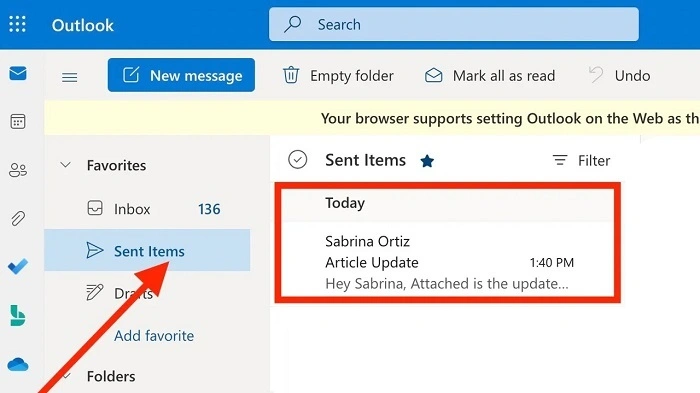
Using Outlook on your computer? Here’s what to do.
Steps
- Open Outlook. Go to Sent Items.
- Double-click the email. It opens in a new window.
- Click Message at the top. Then Actions. Then Recall This Message.
- Pick one:
- Delete unread copies — kills the email if they didn’t read it
- Delete and replace — lets you send a fixed version right away
- Delete unread copies — kills the email if they didn’t read it
- Check the box that says “Tell me if it works.” You’ll get updates.
- Hit OK.
If it works? Email goes poof. Gone from their inbox. If not? You’ll know. (Like if they already read it.)
The New “Undo Send” Thing (2025 Update)
New Outlook has this cool feature. Like Gmail has. It waits a few seconds before sending. Gives you time to stop it.
Steps
- Open Outlook online. Or the new app.
- Click Settings (the gear thing). Then “View all settings.”
- Go to Mail. Then Compose and reply.
- Find Undo Send.
- Pick how long to wait: 5, 10, or 20 seconds.
- Save it.
Now when you send stuff? You get an “Undo” button. For those few seconds. Click it fast!
Perfect for those “Wait! I forgot the file!” moments. No fancy recall needed.
Getting Emails Back in Web Outlook
Using Outlook in your browser? You can do this too. Though Undo Send is taking over.
Steps
- Go to Outlook.com. Or your work email online.
- Click Settings. Then Mail. Then Compose and reply.
- Turn on Undo Send.
- Pick your wait time (5 to 20 seconds).
- Try it out. Send a test email.
- Watch for “Undo” at the bottom. Click it fast!
Miss the window? Email’s gone. Then you need the recall thing. Or just send a “sorry” email.
Swap a Bad Email with a Good One
Sometimes you don’t just want to delete. You want to fix it. Send the right one. Outlook does both at once!
Steps
- In Sent Items, double-click the email.
- Go to Message. Then Actions. Then Recall This Message.
- Pick “Delete and replace with new message.”
- Fix your mistake. Add what you forgot.
- Hit Send.
If it works? Your new email replaces the old one. Magic! If not? They might see both. So keep fixes short and sweet.
Quick Help Table
| What It’s Called | Where You Find It | What It Does | Best For |
| Recall Message | Desktop Outlook | Deletes unread emails (same company) | Work emails |
| Undo Send | Web/New Outlook | Waits before sending | Everyone |
| Replace Message | Desktop Outlook | Swaps old for new | Fixing mistakes |
| Send Again | Any Outlook | You send a “sorry” email | When nothing else works |
When It Works (And When It Doesn’t)
It works when:
- You both use work Outlook
- They didn’t open it yet
- Their email is on and working
It won’t work when:
- You sent to Gmail, Yahoo, etc.
- They already looked at it
- Their rules moved it somewhere
- You use regular email (not work email)
So yeah, it’s not perfect. Undo Send is safer. Or just send a quick “oops” email.
Mobile Outlook (iPhone or Android)
Bad news. Phone Outlook can’t recall yet. But new versions have Undo Send!
Steps
- Write your email in the app.
- Tap Send.
- Look! “Undo” shows up at the bottom.
- Tap it fast! (Like 5 seconds fast.)
- Your email comes back. Fix it or trash it.
Not the same as recall. But catches mistakes before they go out.
Why Your Recall Failed (Don’t Panic)
Recall didn’t work? Happens a lot. Here’s why:
- They already read it
- Rules moved it somewhere
- They’re not in your company
- You use Gmail settings
- They use web or phone Outlook
What now? Send a quick fix email.
Like this:
Subject: Oops — Skip My Last Email
Hi [Name],
Ignore that last one! Here’s the right version. My bad!
Thanks,
[Your Name]
Simple. Clear. Done.
Also Read: Can You Unsend an Email on Gmail? The 2025 Step-by-Step Guide That Actually Works
How to Avoid This Mess
Want to skip the panic? Try these:
Turn on Undo Send. Always. 10-20 seconds saves lives.
Check who you’re sending to. Twice. Three times for secret stuff.
Add files first. Before typing. Can’t forget what’s already there.
Read before sending. Just once more.
Don’t email while doing other stuff. Most mistakes happen when we’re busy.
A few seconds checking beats the awkward recall dance.
Common Questions
Q: Can I recall Gmail emails?
Nope. Only works inside your company’s Outlook.
Q: What if they read it?
Too late. Send a correction instead.
Q: Do they know I tried?
Yeah. They might see “Sender wants this back.”
Q: Is Undo Send the same as Recall?
No way. Undo stops it from sending. Recall tries to grab it back.
Q: How long do I have?
Until they read it. But faster is better!
Getting emails back in Outlook isn’t magic. It’s about timing. And luck. If you both use work email and they didn’t read it? You might save the day.
But here’s the smart move for 2025. Use Undo Send. It’s fast. It works. Every time. Add good habits — check who you’re sending to, read twice, attach first. You’ll rarely need to panic.
Next time you feel that “oh no” moment? Don’t worry. Outlook’s got your back. And now you know how to use it.
