
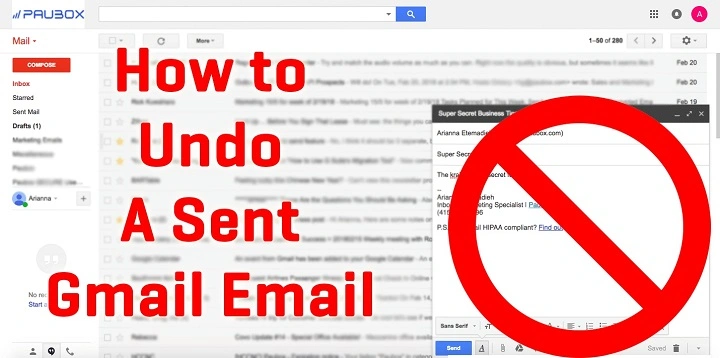
We’ve all been there. You hit send — and then panic hits. Maybe you picked the wrong person. Forgot the file. Or hit “Reply All” by mistake. Your heart drops. But wait. Gmail users? There’s hope.
Gmail has this “Undo Send” thing. It gives you time to take it back. Just a few seconds though. It’s not magic, but it’s close. This 2025 guide shows you how. Desktop, web, mobile — we cover it all. You’ll learn to change the timer. Know when it’s too late. And avoid the panic next time.
Let’s make sure you stay in control. Every time you hit send.
How the Gmail “Undo Send” Feature Works
Here’s the truth: Gmail can’t pull emails back. Not really. Instead, when you hit “Send,” Gmail waits. Just a bit. It holds your message for a few seconds. That’s your chance to stop it.
By default? You get 5 seconds. But you can stretch it. 10, 20, even 30 seconds. During that time, you’ll see “Undo” at the bottom left. Click it fast. Your email stops. Opens back up. Saves as a draft. Now you can fix it. Or delete it.
It’s quick. Simple. Perfect for those “Oops!” moments. You know the ones.
How to Unsend an Email in Gmail on Desktop
Using Gmail in your browser? This is where “Undo Send” shines. Super easy to find. Even easier to use.
Steps
- Write your email like normal. Click Send.
- Look down. Bottom left corner.
- See that little note? ““Message sent” with two choices: View message and Undo.
- Click Undo. Do it fast!
- Boom! Your email pops back up. Now you can edit. Add that file. Or just delete it.
Miss the timer? Too bad. Your email’s gone. Really gone.
You can make this window longer (we’ll show you). But remember: Gmail only delays sending. Not forever. After time’s up, the message flies to their inbox. Can’t stop it then.
Changing the Undo Send Time Limit
Five seconds feels short. Way too short when you’re panicking. Good news: Gmail lets you change it. Give yourself more time.
Steps
- Open Gmail on your computer.
- Click the gear icon. Top right corner.
- Pick See all settings.
- Find the General tab. Look for Undo Send.
- Pick your time: 5, 10, 20, or 30 seconds.
- Scroll down. Click Save Changes.
Done! Now Gmail holds every message longer. Thirty seconds seems like forever. But hey — peace of mind matters. Especially when you send important stuff.
How to Unsend an Email in the Gmail Mobile App (Android or iPhone)
The mobile app has Undo Send too. But it shows up fast. Disappears faster. You gotta be quick.
Steps
- Write your email in the app. Tap Send.
- Bottom of your screen — see that pop-up? Says “Sent” with an Undo button.
- Tap Undo. Right away!
- Your email opens back up. Edit or delete.
Same rules apply. You get up to 30 seconds. Depends on your settings. Once it leaves Gmail? No take-backs.
Mobile makes this tricky. All those notifications. So pause after sending. Just for a second. Just in case.
What Happens After You Click “Undo”
Hit Undo? Gmail stops everything. The message never leaves. It just delays sending — doesn’t grab it back. That’s why timing matters.
After you click Undo, Gmail does this:
- Stops the send process.
- Puts the message in Drafts.
- Opens it for editing.
- Keeps everything intact.
Now what? Fix your mistakes. Change the subject. Add people. Remove people. Or just delete it. Your choice. When ready, send again. Or don’t.
Can You Unsend an Email After It’s Delivered?
Here’s the truth: Nope. Once it’s delivered? Game over.
Unlike some work systems (like Outlook on company networks), Gmail can’t recall emails. Once it hits their inbox, it’s theirs. Forever.
That’s why Undo Send exists. It’s not about pulling emails back. It’s about holding them. Just long enough to think twice.
How to Use Undo Send Like a Pro
Want to master Undo Send? Try these tricks:
- Watch for the “Undo” link. Every time you send.
- Set your delay to 20-30 seconds. More time helps.
- Preview emails first. Click that expand arrow.
- Add recipients last. Can’t send by accident then.
- Try “Schedule send” for big emails. Review later.
Small habits. Big saves. Trust me.
Using “Schedule Send” as a Safety Net
Send lots of important emails? Try scheduling instead. Gives you way more control.
Steps
- Write your email in Gmail.
- See the Send button? Click the arrow next to it.
- Pick Schedule send.
- Choose when. Pick a time. Any time.
- Click Schedule send.
Your message waits in the Scheduled folder. You can check it. Edit it. Delete it. Anytime before it sends. Perfect for double-checking. Words, files, tone — everything.
Quick Reference Table
| What to do | How to do it | What happens |
| Unsend email (desktop) | Click Undo in 5-30 seconds | Stops send, opens draft |
| Change Undo time | Settings → General → Undo Send → Pick time | More time to cancel |
| Unsend on mobile | Tap Undo after “Sent” shows | Stops right away |
| Schedule email | Arrow by Send → Schedule send | Sends later |
| After Undo clicked | Message goes to Drafts | Can edit or delete |
Troubleshooting Common Issues
Can’t see the Undo option? Or it vanishes too fast? Check these:
- Old Gmail version? Update your app. Or browser.
- Timer set to 5 seconds? Too quick. Make it longer.
- Using Apple Mail or Outlook with Gmail? Won’t work. Need actual Gmail.
- Internet drops? Gmail might send faster. Shorter Undo window.
- Once Undo disappears? Sorry. Email’s gone.
What If You Sent Something by Mistake?
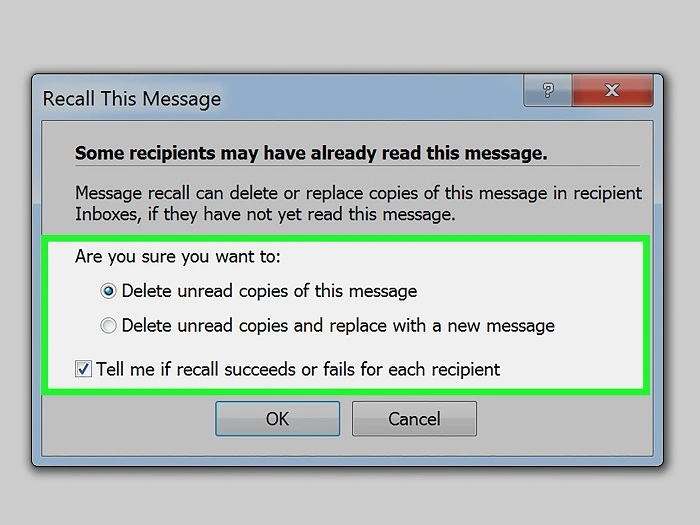
Missed the Undo window? Sent the wrong thing? Don’t panic. You can still:
- Send a follow-up. Explain the mistake.
- Say sorry fast. If it was bad or private.
- Use Confidential Mode next time. (More on that soon.)
Can’t unsend it. But being quick helps. Stays professional. Less confusion.
Also Read: UPenn Email: The 2025 Step-by-Step Guide That Actually Works
Bonus: Using Confidential Mode for Extra Safety
Confidential Mode adds security. Not the same as unsending. But gives you control after sending. Set expiration dates. Stop forwarding. Even need passcodes.
Steps
- In Gmail, click Compose.
- Bottom of the window — see the lock icon?
- Pick when it expires. Add passcode if you want.
- Write your email. Click Send.
Now they can’t forward it. Can’t copy. Can’t print. Can’t download. When time’s up? It’s gone. Like a self-destruct timer. Great for private stuff.
Frequently Asked Questions
Q: Can I recall Gmail after it’s opened?
Nope. Once they get it, it’s theirs.
Q: Max time to Undo Send?
Thirty seconds. Set it in settings.
Q: Does Undo work on mobile?
Yep. Just tap Undo fast.
Q: Can I unsend with attachments?
Yes! Everything comes back. Files too.
Q: Does Confidential Mode replace Undo?
No. Different tools. Undo delays. Confidential controls after.
Best Practices for Safer Sending
Good habits stop mistakes. Check recipients. Check the subject. Check files. Don’t write when tired. Or mad. Big emails? Schedule them. That delay helps.
Handle secret stuff? Use Confidential Mode. Or encryption. Feel nervous before sending? Remember — Gmail gives second chances. Short ones. Use them well.
Can you unsend Gmail? Yes — if you’re fast. Gmail’s Undo Send isn’t magic recall. It’s about timing. Being aware. Set your delay. Watch for Undo. Send mindfully. Save yourself from mistakes. From stress.
Next time you hit send and regret it? Breathe. Click Undo. In those few seconds, Gmail lets you rewrite the story.
