
Everyone has felt that sudden panic. You hit Send and realize the wrong person got the message. Or you forgot the attachment. Or you wrote something you want to rewrite. Or you entered the wrong email address by accident. Outlook gives you a chance to pull the message back in some situations.
Retracting an email is not the same as deleting it. It is Outlook’s attempt to stop the message before the other person reads it. It works only under certain conditions but when it works, it saves you from awkward moments.
This 2025 guide shows you exactly how to retract an email in Outlook on desktop, web, Mac, iPhone and Android. How recalls work. When they fail. How to fix mistakes even when you cannot recall. Clear simple steps for calm control.
Why You May Need to Retract an Email in Outlook
People retract Outlook emails when they:
- send the message to the wrong person
- forget an attachment
- type wrong information
- send the email too early
- misspell a name
- send the wrong file
- realize the tone needs adjusting
- want to correct details before the recipient reads it
A recall gives you a chance to fix the moment.
How to Retract an Email in Outlook Desktop (Windows)

This is the classic recall feature and only works for Microsoft Exchange or Microsoft 365 business accounts.
Steps:
- open Outlook
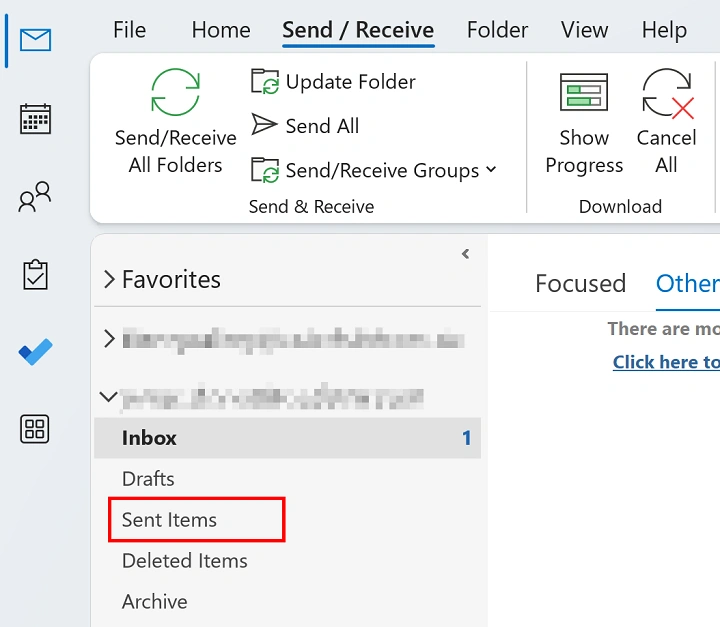
- go to Sent Items
- double click the email you want to retract
- click Message on the top ribbon
- click Actions
- click Recall This Message
- choose Delete unread copies or Delete unread copies and replace with a new message
- click OK
If the recipient has not opened the email yet, Outlook will try to pull it back.
Tip:
- if you choose Replace, Outlook opens your original email so you can correct and resend it
When Outlook Recall Works and When It Does Not
Outlook recall only works if:
- both users are on the same organization
- both use Outlook with a Microsoft Exchange or Microsoft 365 business account
- the email is unread
- the recipient has Outlook open
- the message has not been moved automatically by rules
Recall does not work when:
- the email is already read
- the recipient uses Gmail or Yahoo
- the recipient uses Outlook.com
- the recipient opened the message on a phone
- the email was moved by filters
- the account is external
Understanding this helps you know what to expect.
How to Retract an Email in the New Outlook (Modern Version)
The new Outlook version supports recalls for business accounts.
Steps:
- open the new Outlook
- go to Sent
- double click the message
- click More actions (…)
- choose Recall message
- choose to delete or replace
- send the updated message if needed
The new interface makes the process smoother.
How to Retract an Email in Outlook Web (Outlook.com and Browser)
Outlook Web does not support traditional recalls but it offers Undo Send.
Steps:
- open Outlook.com
- click the gear icon
- scroll to Undo Send
- move the slider to increase the delay time from 5 to 10 or 20 seconds
- click Save
How to retract using Undo Send:
- after sending an email look at the bottom left
- click Undo before the timer ends
This stops the message before it leaves your account.
How to Retract an Email in Outlook for Mac
Mac does not include the full recall feature but it supports Undo Send.
Steps:
- open Outlook on Mac
- click Outlook on the menu
- click Preferences
- click Composing
- choose an Undo Send delay time
- save changes
To retract:
- send an email
- click Undo before the timer expires
Your email does not leave the outbox.
How to Retract an Email in the Outlook App (iPhone and Android)
Mobile apps do not offer message recall but they include Undo Send.
Steps:
- send an email
- look at the bottom of the screen
- tap Undo within the short time window
The message will not be delivered.
How to Minimize Damage When Recall Does Not Work
If recall fails or is not available, use these quick fixes:
Steps:
- send a follow up email correcting the mistake
- apologize politely
- attach the correct file
- clarify any incorrect information
- ask the recipient to ignore the previous message
Most recipients understand and appreciate honesty.
How to Use Delay Delivery to Prevent Mistakes
Delay Delivery gives you time to catch errors before they send.
Steps:
- open Outlook Desktop
- click File
- click Manage Rules and Alerts
- create a new rule
- choose Apply rule on messages I send
- choose defer delivery by X minutes
- save the rule
Your outgoing emails will sit in Outbox for review before they send.
How to Check If Your Recall Succeeded

Outlook tells you if the recall worked.
Steps:
- open your inbox
- look for a message titled “Message Recall Report”
- check recall status
- read success or failure details
You will know exactly what happened.
When You Cannot Find Recall Option
If you do not see Recall This Message, check:
- email sent from a POP or IMAP account
- you are using Gmail or Yahoo inside Outlook
- the recipient is outside your organization
- you are using Outlook Web
- your email provider does not support Exchange
- your account is not a business account
Fix:
- rely on Undo Send
- send a correction email
- set up Delay Delivery for future emails
Recall is limited but Undo Send always helps.
Organization Tips to Prevent Future Mistakes
- enable Undo Send
- review recipients twice
- attach files before writing the message
- keep Delay Delivery on for important work
- check tone before sending
- avoid sending sensitive information too quickly
These habits reduce errors and stress.
Quick Summary
How to retract an email in Outlook:
- Desktop: Sent Items → open email → Message → Actions → Recall This Message
- New Outlook: open email → More (…) → Recall
- Web and Mac: use Undo Send
- iPhone or Android: tap Undo after sending
- Recall works only for business accounts
- Undo Send works everywhere
- Use Delay Delivery to prevent future mistakes
One click can stop the message before it reaches the wrong inbox.
FAQs
Can I retract an email after the person reads it?
No. Recall only works if the message is unread.
Does Outlook Web have a recall?
No but it has Undo Send.
Why does my recall fail?
The recipient may be outside your organization or has already opened the email.
Can I retract an email from Gmail users?
No. Recall works only within Exchange or Microsoft 365 business systems.
How do I stop this from happening again?
Enable Undo Send or set up Delay Delivery.
