
Ever need to send the same email to tons of people?
Maybe for work stuff. Or school things. Could be party invites. Or you’re reaching out to customers.
But then it hits you:
“Wait… can everyone see each other’s emails?”
Yeah. That gets weird fast.
Nobody wants their email shared with random people by mistake.
That’s why you gotta learn this trick. How to send emails to lots of people without them seeing each other.
Good news?
It’s super easy once you know how.
Here’s what you need to know about sending private emails to multiple people.
What Does Sending Emails Individually Mean?
Sending emails one by one means each person gets their own copy.
They won’t see:
- Other people’s emails
- Who else got it
- Any group lists
To them, it looks like just them. Nobody else.
Way better for work. And keeps things private.
Why People Send Emails Individually
There’s lots of good reasons to do this.
Privacy Protection
This one’s huge.
Most people hate when strangers see their email.
Think about:
- Your customers
- Students in class
- People at work
- Your clients
- Party guests
Professional Appearance
Big email lists look messy. Really messy.
Solo emails feel cleaner. More personal too.
Better Security
Sharing email lists can cause big problems.
Some companies even get sued for this stuff.
Higher Open Rates
People open emails that feel personal.
Works great for business emails.
Avoiding Reply-All Chaos
We all know those crazy reply-all chains.
Sending solo stops that mess.
The Difference Between To, CC, and BCC
Before you send group emails, know these three things.
To
Main spot for emails.
Everyone sees all names here.
CC (Carbon Copy)
Send copies to others.
Again, everyone sees everyone. Not great.
BCC (Blind Carbon Copy)
This is the magic one.
People can’t see others in BCC.
That’s why BCC rocks for private mass emails.
What Is BCC Exactly?
BCC means Blind Carbon Copy.
Put emails in BCC and:
- Each person gets the email
- They can’t see other people
- Replies come just to you
- Privacy stays safe
Honestly, BCC is the easiest way to do this.
How to Send Emails Individually Using BCC in Gmail
Gmail makes this super simple.
Steps
- Open Gmail up
- Click Compose button
- Click BCC on the right
- Type emails in BCC field
- Write your message
- Hit Send
Done!
Now everyone gets it privately.
Should You Put Your Own Email in the To Field?
Yeah, usually.
Most people put their own email in To when using BCC.
Why, though?
Some email systems need something in To.
Also makes the email look better.
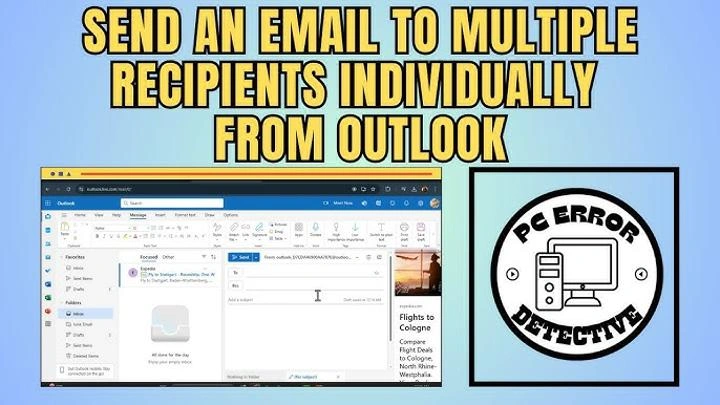
How to Send Individual Emails in Outlook
Outlook has BCC too.
Steps
- Open up Outlook
- Make New Email
- Turn on BCC field
- Add people to BCC
- Send your message
Pretty easy stuff.
How to Enable BCC in Outlook
Sometimes BCC hides.
To find it:
- Open new message
- Click Options tab
- Pick BCC option
Now you’ll see it.
How to Send Emails Individually in Yahoo Mail
Yahoo works the same way.
Steps
- Open Yahoo Mail
- Start new message
- Click CC/BCC link
- Add emails to BCC
- Send it off
Quick and easy.
How to Send Emails Individually on Apple Mail
Apple Mail has BCC too.
Steps
- Open Mail app
- Start new email
- Click View menu
- Turn on BCC field
- Add your people
- Hit Send
Works on Mac and iPhone both.
Can Recipients Tell They’re in BCC?
Usually nope.
People can’t see:
- Other BCC folks
- How many got it
- Hidden emails
But they might guess if:
- Email sounds generic
- It says “Hey everyone”
- Something feels off
Still, their info stays private.
Is BCC the Same as Sending Individually?
Not quite.
BCC sends one email to many people privately.
Real solo sending means separate emails for each.
But BCC works great for most things.
When BCC Is the Best Option
BCC rocks for:
- Party invites
- School news
- Small business stuff
- Family updates
- Group alerts
Fast and simple.
What Is Mail Merge?
Mail merge is a fancy way to send custom emails.
Instead of one basic email, mail merge adds:
- People’s names
- Company names
- Custom stuff
Each person gets their own version.
Super popular for business.
How Mail Merge Works
You make:
- A contact list
- Email template
- Fields for names
Then software makes separate emails.
Pretty cool honestly.
Gmail Mail Merge Tools
Gmail needs extra tools for mail merge.
Popular ones:
- Yet Another Mail Merge
- Mailmeteor
- GMass
- Mail Merge for Gmail
They work with Google Sheets often.
Outlook Mail Merge
Outlook uses Microsoft Word for mail merge.
Office folks love this.
You can make:
- Custom emails
- Bulk messages
- Invites
- Customer emails
Benefits of Sending Emails Individually
Why do this at all?
It helps tons.
Better Privacy
Biggest win easily.
More Professional
Looks way cleaner.
Higher Engagement
Personal emails get more replies.
Fewer Spam Complaints
Big email lists look sketchy sometimes.
Better Customer Experience
People like privacy.
Common Mistakes When Sending Group Emails
People mess up all the time.
Forgetting BCC
Biggest mistake ever.
Now everyone sees everyone’s email.
Super awkward.
Using CC Instead of BCC
Easy slip-up. Big privacy fails.
Sending Huge Lists at Once
Too many emails might trigger spam filters.
Generic Subject Lines
Mass emails get ignored fast.
Poor Formatting
Messy emails look bad.
Can Sending Too Many Emails Trigger Spam Filters?
Yep, for sure.
Email companies watch for bulk sending.
They flag you if:
- Too many go out fast
- Lots of links show up
- People mark as spam
That’s why pros use email services.
Best Practices for Sending Bulk Emails
Want better results?
Do these things.
Use Clear Subject Lines
Don’t sound spammy.
Keep Emails Short
People skim fast.
Personalize When Possible
Even using names helps tons.
Avoid Too Many Links
Spam filters hate link-heavy emails.
Double-Check Recipients
Privacy mistakes are bad news.
Test Emails First
Send yourself one first.
Should Businesses Use Email Marketing Platforms?
Yeah, usually.
Services like:
- Mailchimp
- Constant Contact
- ConvertKit
- Brevo
…make big email campaigns easier.
They help with:
- Unsubscribe links
- Stats and data
- Nice templates
- Spam rules
Are There Legal Rules for Bulk Emails?
In many places, yeah.
Some laws need:
- Unsubscribe buttons
- Honest subject lines
- Real sender info
Businesses really need to follow these rules.
How Many Recipients Can Gmail Handle?
Gmail has limits.
Usually like:
- 500 emails daily for regular folks
- More for business accounts
Limits stop spam abuse.
Also Read: Last Working Day Email: A Simple Guide to Saying Bye at Work (2026)
Can You Send Attachments to Multiple Recipients?
Sure can.
But know this:
Big files make emails huge.
Too many files might trigger spam filters.
Cloud links work better sometimes.
Is It Better to Send Separate Emails One by One?
Sometimes yeah.
Great for:
- Big clients
- Job stuff
- Work outreach
- Private talks
Solo emails feel more personal.
But for big groups, BCC saves tons of time.
Can Recipients Reply to BCC Emails?
Yep.
Replies come back to just you.
Other BCC people won’t see replies.
FAQs
What does BCC mean in email?
Blind Carbon Copy. Hides emails from each other.
Can BCC recipients see each other?
Nope. That’s the whole point.
Is BCC professional?
Yeah. Super common at work.
Can Gmail send emails individually?
Yes, using BCC or mail merge tools.
Is mail merge better than BCC?
Depends. Mail merge adds custom stuff. BCC is easier.
Can people tell they’re BCC’d?
Usually no way.
Should I use CC or BCC for group emails?
BCC for privacy. CC shows everyone.
Can bulk emails go to spam?
Yeah, if done wrong or too fast.
Final Thoughts
Learning to send emails to lots of people privately? One of the best email skills ever.
It keeps things private. Looks way better. And stops those awkward email oops moments.
For simple stuff, BCC works great.
Want fancy custom emails? Mail merge tools make emails feel super personal.
And trust me on this. Once you mess up and show everyone’s email by mistake? You’ll never forget BCC again.
